

Add a second contact form
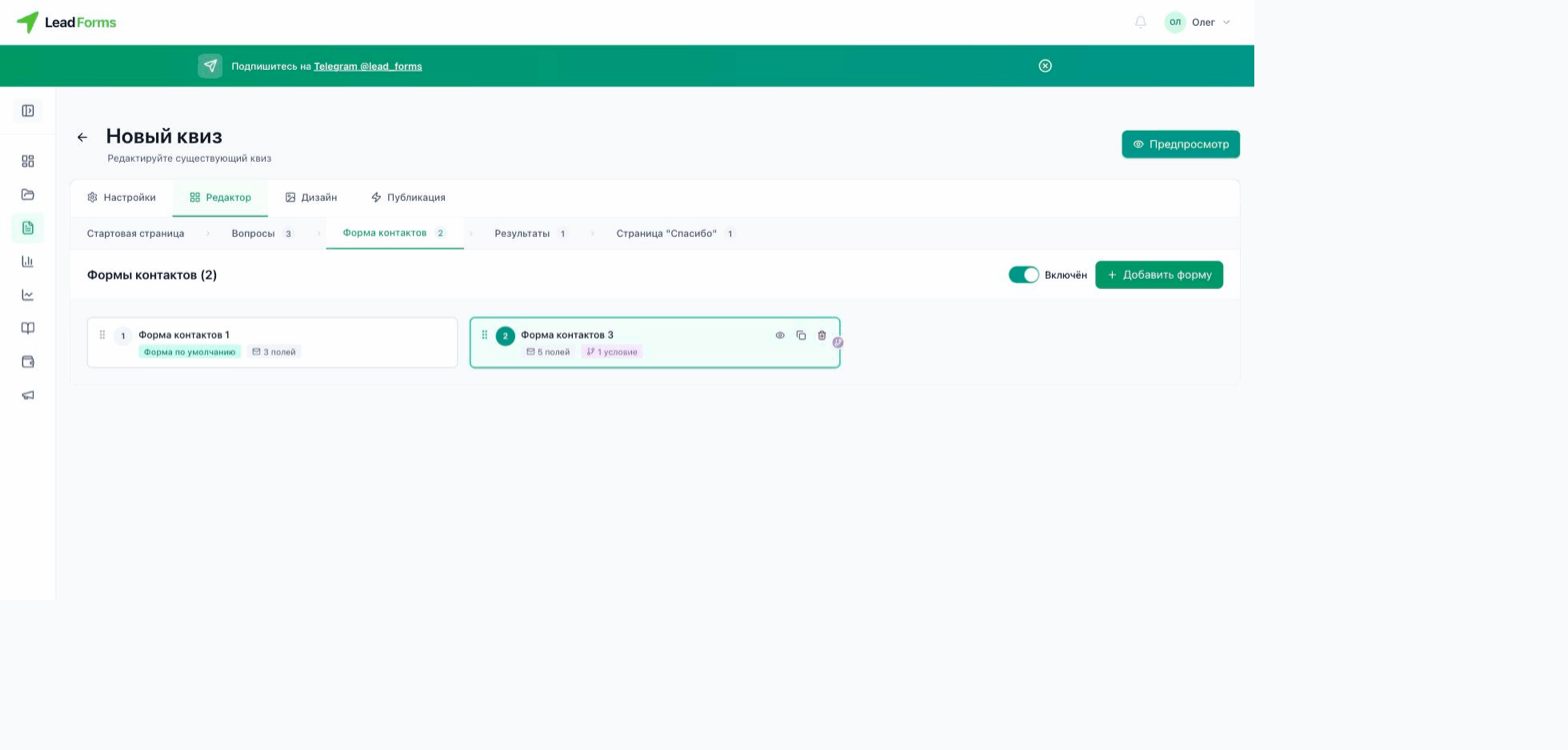
Open the quiz and go to the “Editor” tab → the “Contact form” step → the “Add form” button. The new form shows the conditional logic icon on the right.
Set up the condition
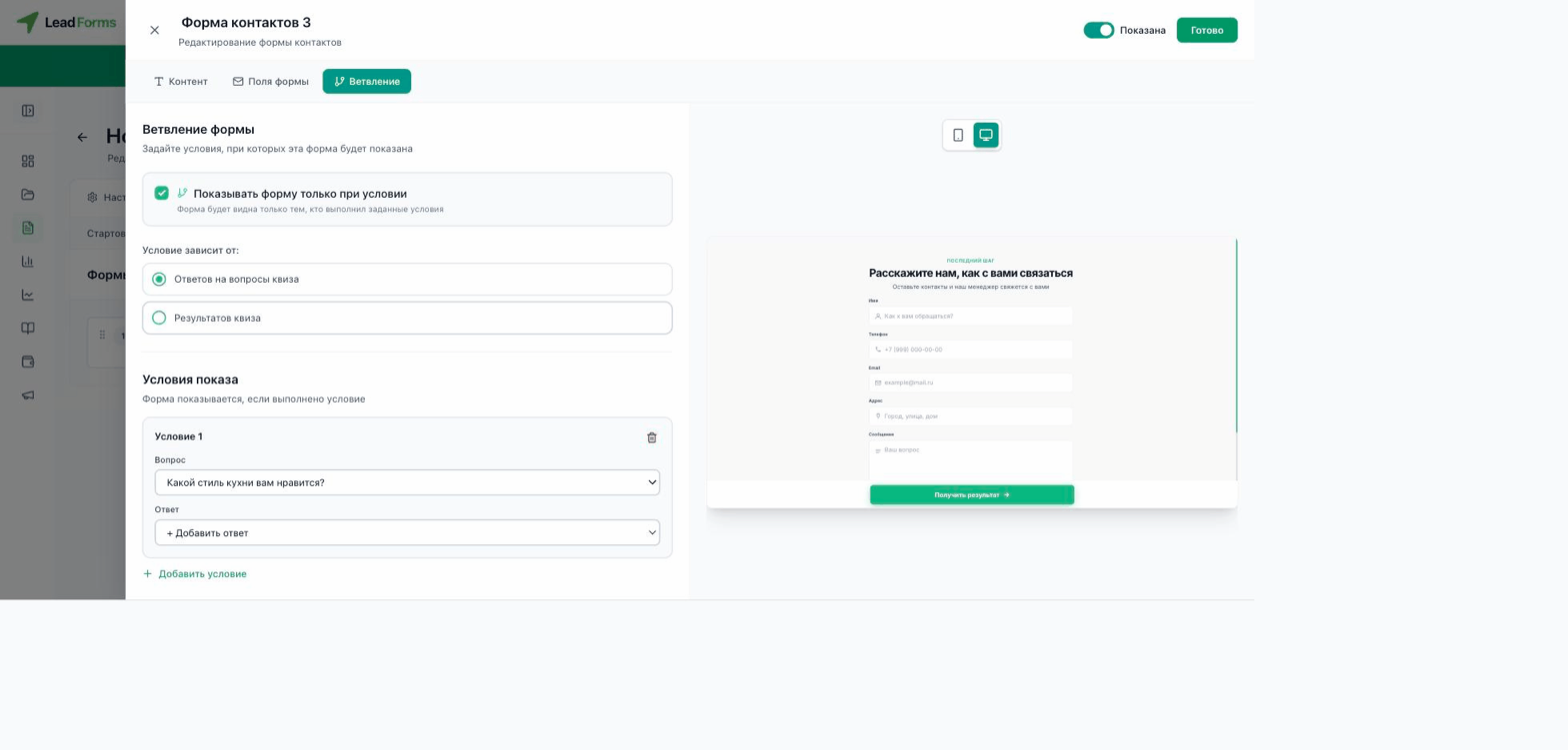
Open the new form, go to the “Conditional logic” tab → turn on “Show the form only if a condition is met”. Choose what the condition depends on: “Answers to quiz questions” or “Quiz results”. Then use the “Add condition” button to specify the question and answer (or the result) that will show the form.
The “Add condition” button lets you add several conditions at once.
The default form
The form without a condition, usually the first one, marked as “Default form”, is shown when none of the other forms’ conditions are met: it works as a safety net.
