Open the domain settings in your dashboard
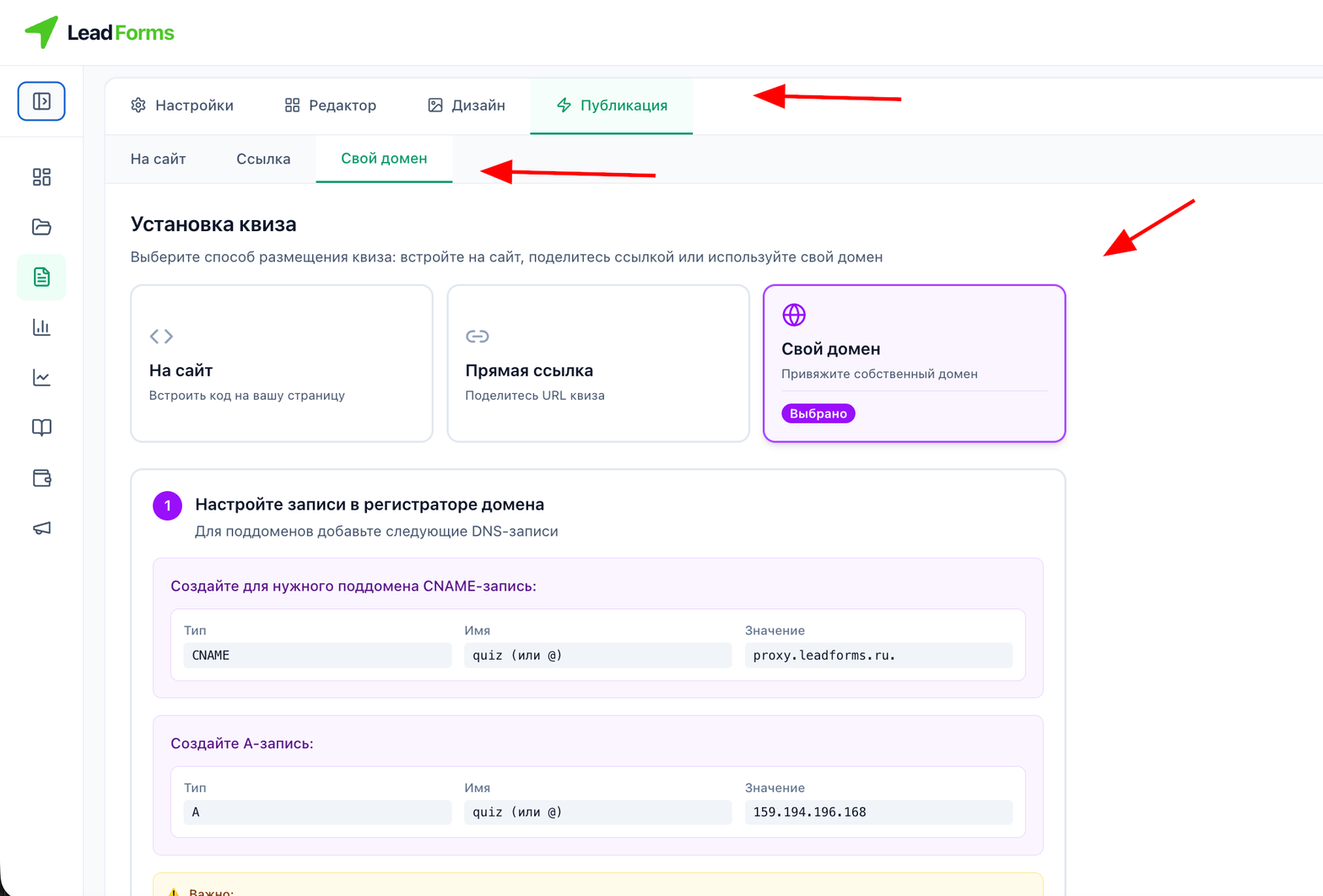
Open the quiz and go to the “Publish” tab → the “Custom domain” subtab. There, LeadForms shows the DNS records you need to create at your registrar.
Create the DNS records at your registrar
In your domain DNS settings, create the records for what you are connecting:
For a subdomain (for example,
Name:
quiz.example.com), a CNAME record:Name:
quiz, value: proxy.leadforms.ru.For a root domain (for example,
Name:
example.com), an A record:Name:
@, value: 159.194.217.145Important: DNS changes can take anywhere from a few minutes to 48 hours. Give it some time before you check the result.
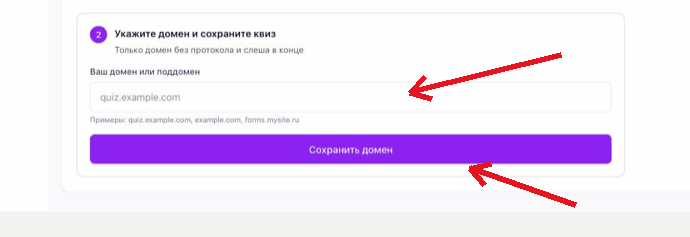
Enter the domain in your dashboard and save
On the same “Custom domain” tab, in the “Your domain or subdomain” field, enter the domain without the protocol (no http or https) and without a trailing slash, then click “Save domain”.