

How it works
The quiz is a web page, so inside a native app it opens in a WebView, the built-in browser component available in both React Native and Flutter.
The script and button code you paste on a website do not work here: they are made for a page with a DOM. In the app, you use the direct quiz link.
The script and button code you paste on a website do not work here: they are made for a page with a DOM. In the app, you use the direct quiz link.
Copy the direct quiz link
In the quiz editor, open “Publish”, choose the “Direct link” mode and click “Copy”. The address looks like this:
https://quiz.leadforms.ru/8233, where 8233 is your quiz number.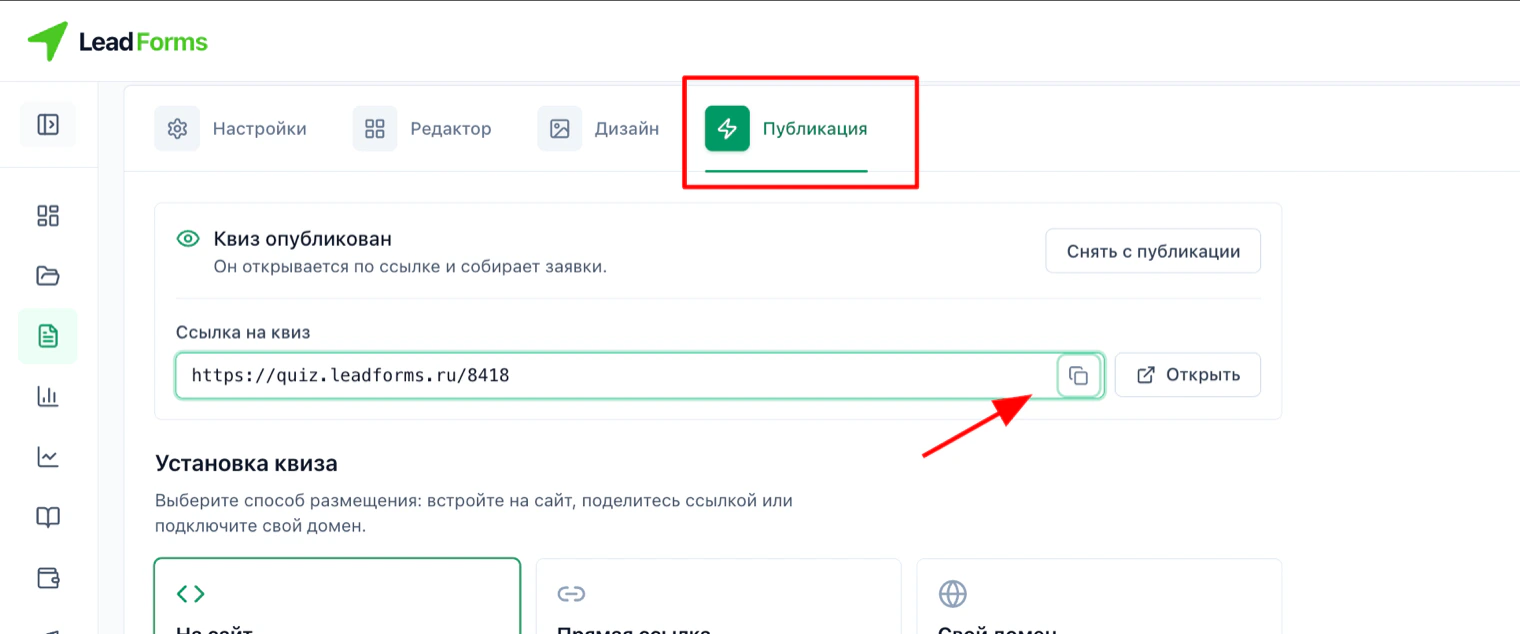
React Native
Install the
react-native-webview package and open the link on a separate screen:npm install react-native-webview
cd ios && pod install && cd ..import React from 'react'
import { WebView } from 'react-native-webview'
const QUIZ_URL = 'https://quiz.leadforms.ru/8233'
export default function QuizScreen() {
const source = { uri: QUIZ_URL }
return (
<WebView
source={source}
javaScriptEnabled={true}
domStorageEnabled={true}
startInLoadingState={true}
/>
)
}javaScriptEnabled and domStorageEnabled are required: without them the quiz does not work, because it is built entirely in JavaScript.Flutter
Add the
webview_flutter package to pubspec.yaml and open the quiz on a screen:flutter pub add webview_flutterimport 'package:flutter/material.dart';
import 'package:webview_flutter/webview_flutter.dart';
const quizUrl = 'https://quiz.leadforms.ru/8233';
class QuizScreen extends StatefulWidget {
const QuizScreen({super.key});
@override
State<QuizScreen> createState() => _QuizScreenState();
}
class _QuizScreenState extends State<QuizScreen> {
late final WebViewController controller;
@override
void initState() {
super.initState();
controller = WebViewController()
..setJavaScriptMode(JavaScriptMode.unrestricted)
..loadRequest(Uri.parse(quizUrl));
}
@override
Widget build(BuildContext context) {
return Scaffold(
body: SafeArea(child: WebViewWidget(controller: controller)),
);
}
}JavaScriptMode.unrestricted is required: by default, the WebView has JavaScript turned off and the quiz does not start.Internet permission on Android
Make sure this line is in
android/app/src/main/AndroidManifest.xml:<uses-permission android:name="android.permission.INTERNET" />It is usually there already. If it is missing, the WebView shows a blank screen with no error, and the cause is hard to find.
On iOS nothing special is needed: the quiz is served over HTTPS and App Transport Security restrictions do not affect it.
On iOS nothing special is needed: the quiz is served over HTTPS and App Transport Security restrictions do not affect it.
How to open the quiz with a button
The WebView screen opens like any other: in React Native, with navigation (
If you want it on top of the current screen instead of as a separate page, open it in a modal: in React Native, with
navigation.navigate); in Flutter, with Navigator.push.If you want it on top of the current screen instead of as a separate page, open it in a modal: in React Native, with
<Modal> with the WebView inside; in Flutter, with showModalBottomSheet or showDialog.What to keep in mind
• Leads arrive the same way as from a website: in your dashboard and in the connected integrations.
• Analytics inside the app is measured differently. Google Analytics and ad pixels behave differently in a WebView than in a browser: some events may not arrive, and the traffic source is detected less accurately. If quiz analytics matters to you, compare it with the built-in reports in the “Analytics” section of your dashboard.
• The link can also open in the phone browser: then the quiz appears in a separate window over the app. It is simpler, but the person leaves your app.
• Analytics inside the app is measured differently. Google Analytics and ad pixels behave differently in a WebView than in a browser: some events may not arrive, and the traffic source is detected less accurately. If quiz analytics matters to you, compare it with the built-in reports in the “Analytics” section of your dashboard.
• The link can also open in the phone browser: then the quiz appears in a separate window over the app. It is simpler, but the person leaves your app.
Stuck with the setup?
If something does not work, and we will sort it out with you.
