

Copy the initialization code
In the quiz editor, open “Publish” → “On website”, choose the “Button” type and click “Copy” under the code for the
<head> block.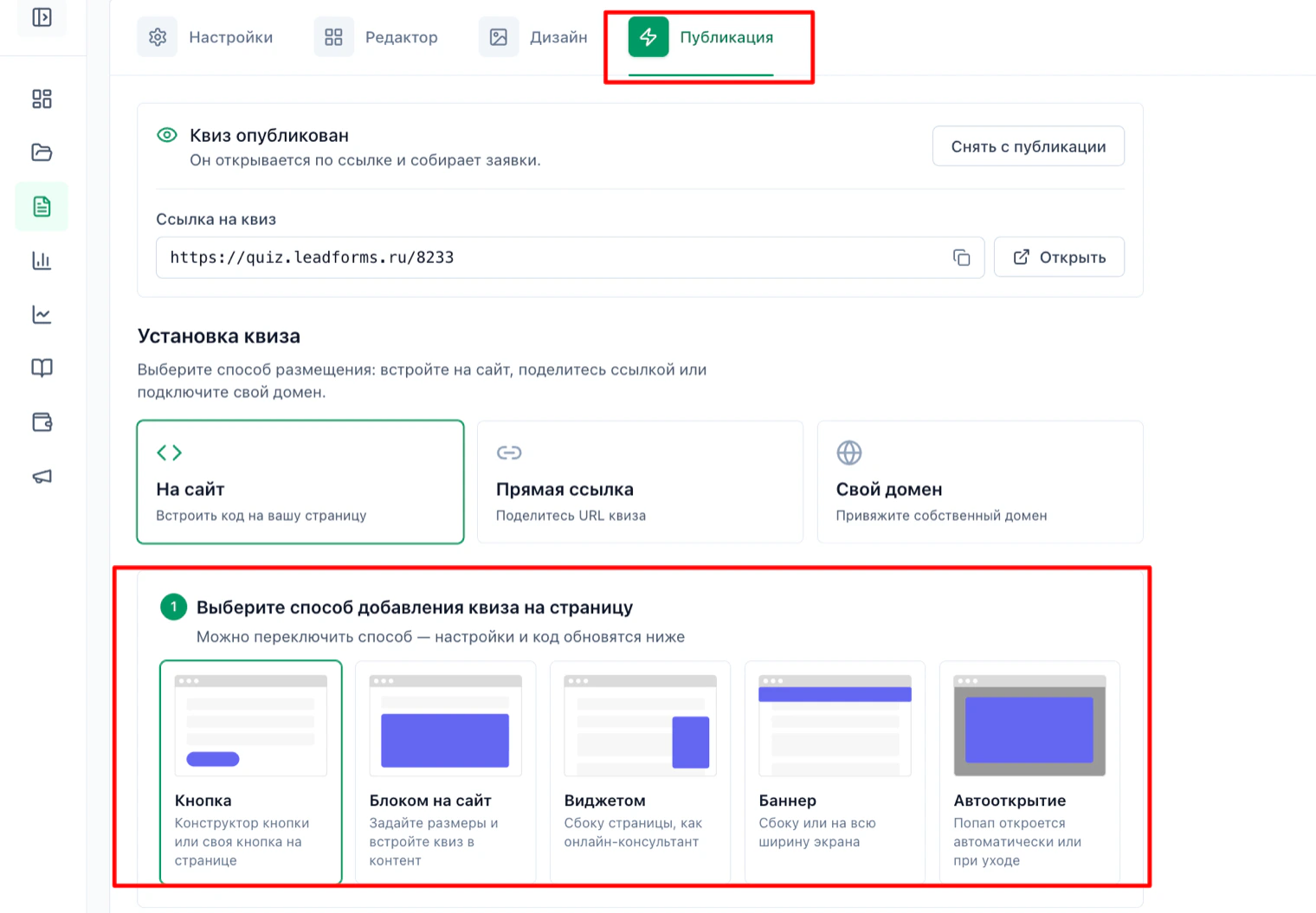
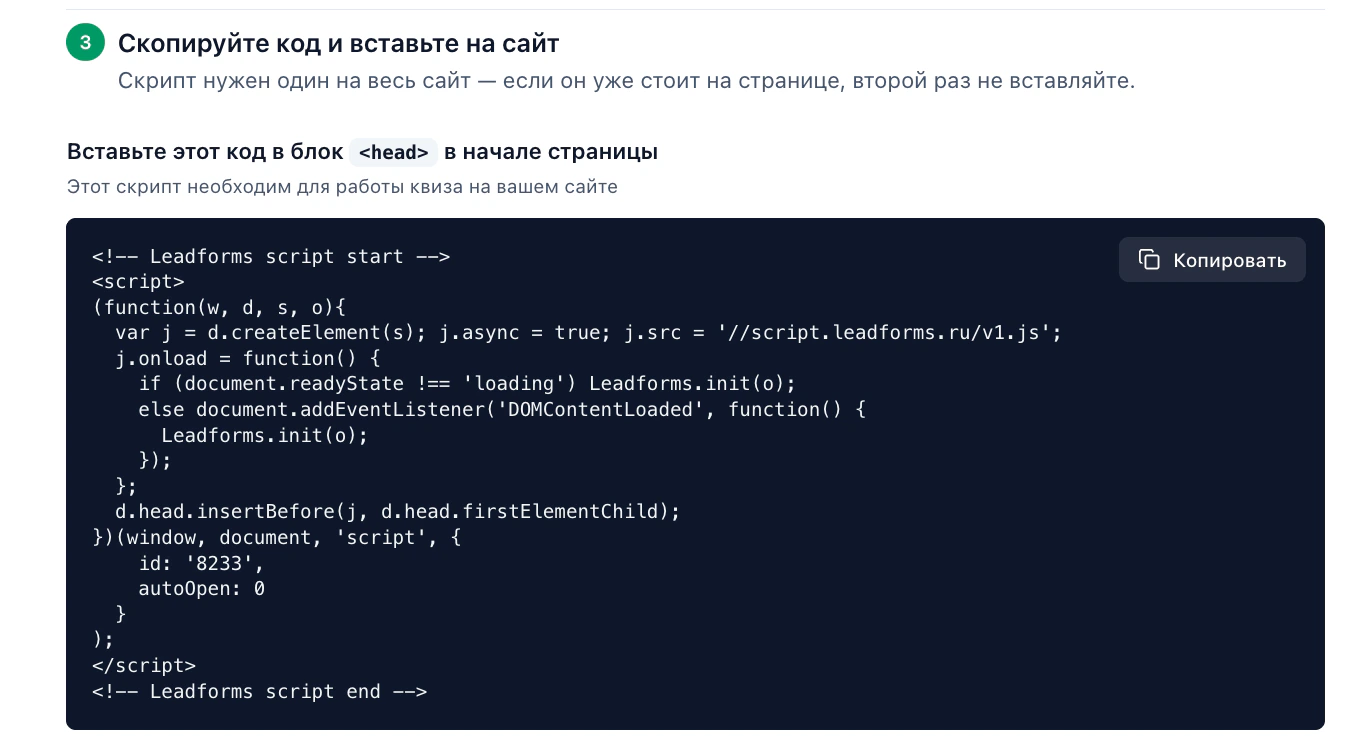
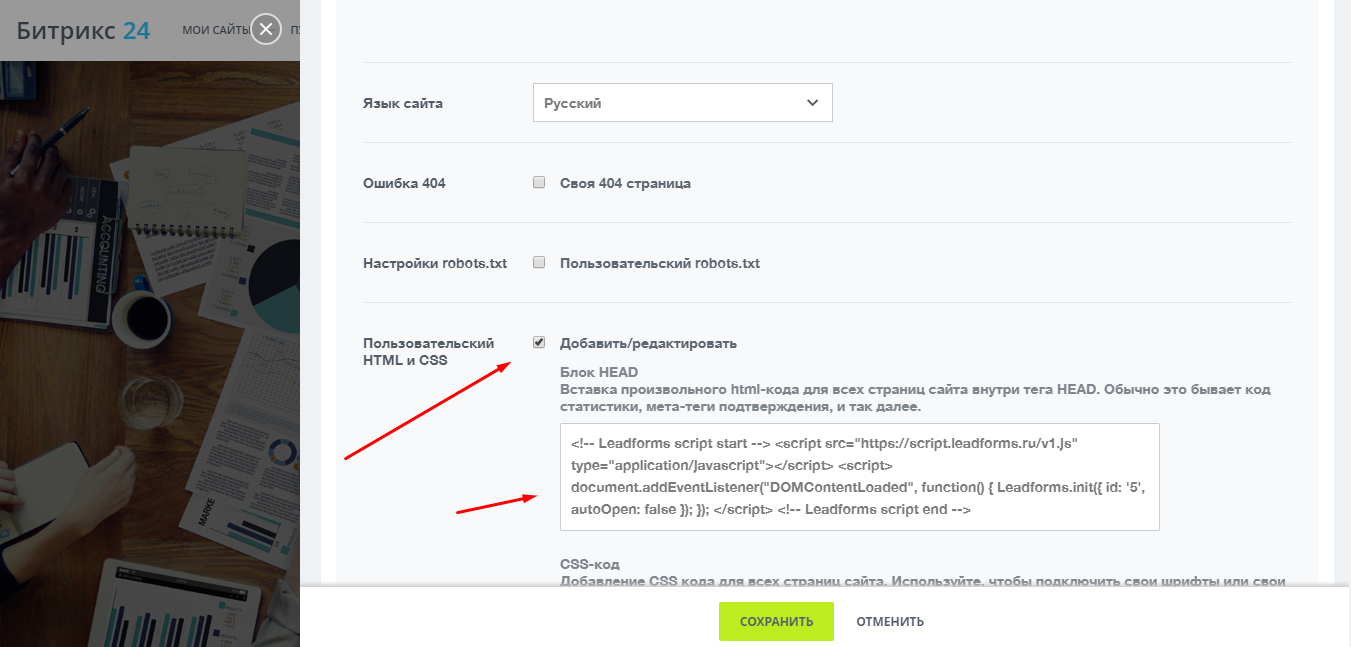
Paste the initialization code in Bitrix24
Go to the site settings, “Settings” → “Page settings”. Open the “Advanced” tab, turn on “Custom HTML and CSS”, paste the copied code and save.
Copy the button link
In the same “Custom button” subtab, copy the link in the form
#popup:Leadforms_ID (or the code with onclick="Leadforms.showModal('ID')").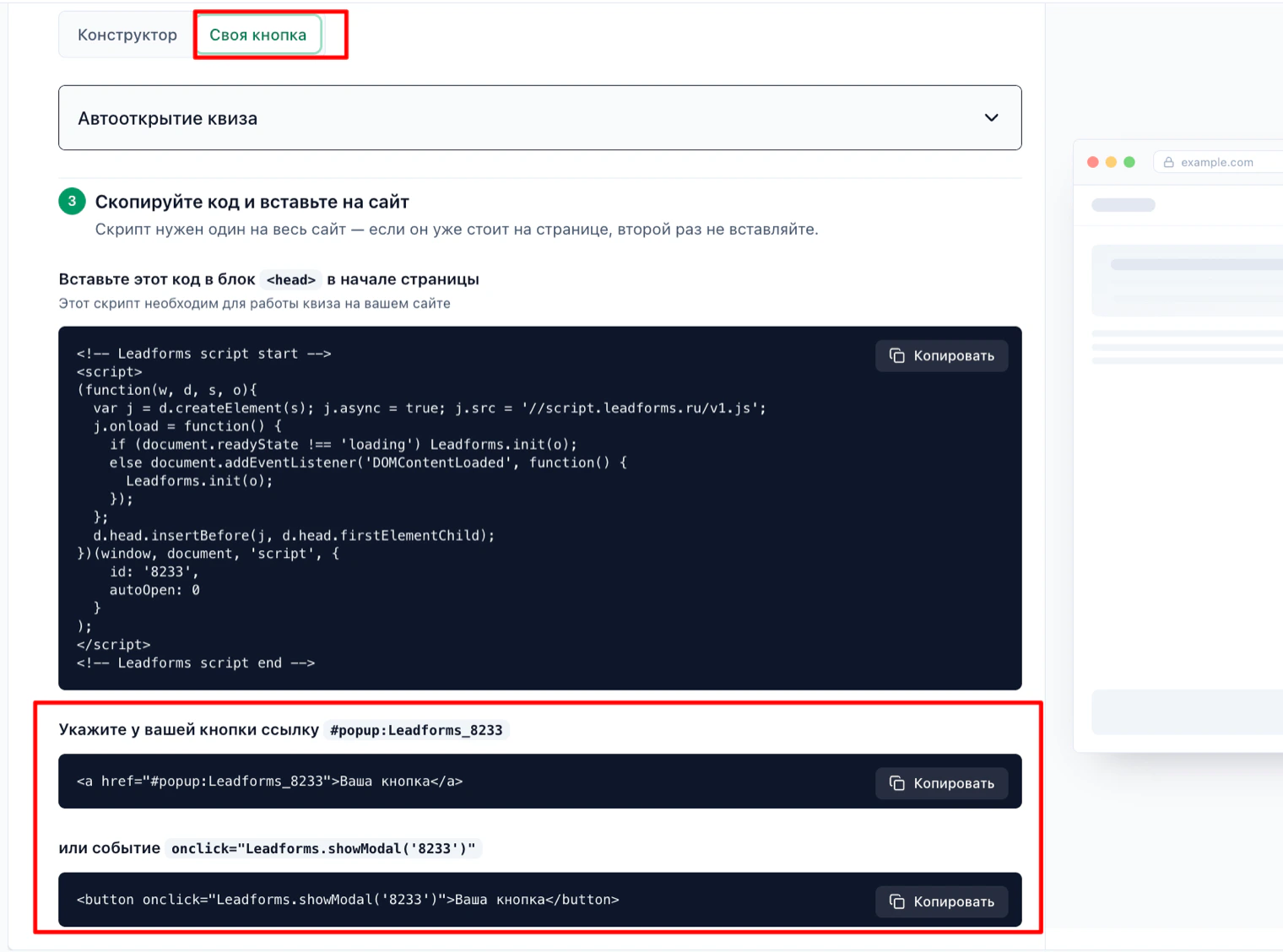
Add a button from the Bitrix24 editor
Add a block that has a button.

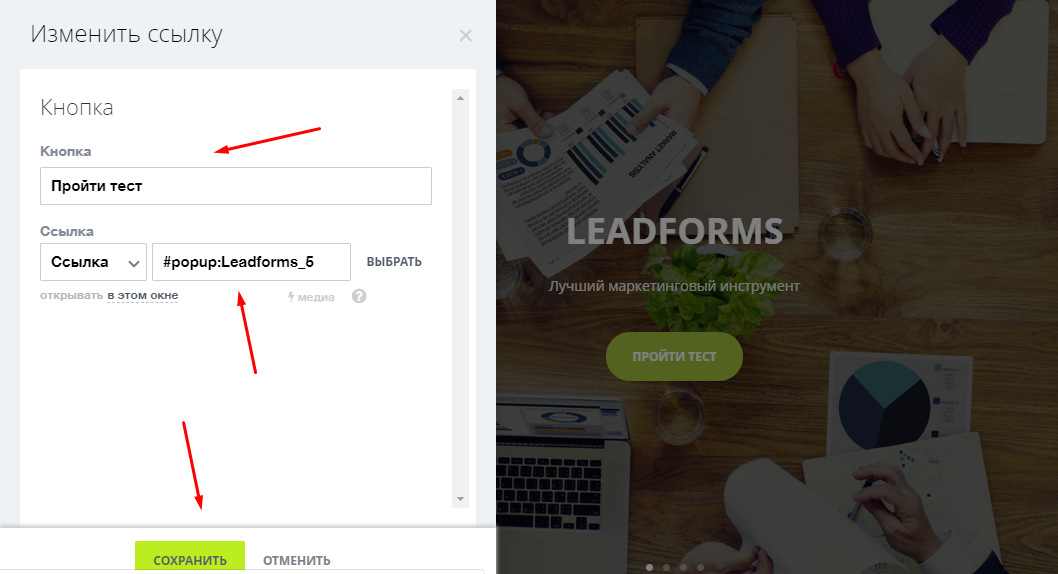
Put the link on the button
Click the button to configure it and, in the “Link” field, paste the address that opens the quiz. For example: #popup:Leadforms_ID
Publish the page
The quiz will open when someone clicks the button.
Stuck with the setup?
If something does not work, and we will sort it out with you.
