

Open “Publish” → “On website” → “Block on the page”
Open the quiz and go to the “Publish” tab → the “On website” subtab → the “Block on the page” embed mode. If needed, adjust the width, height, corner radius and margin, and set up the button for mobile.
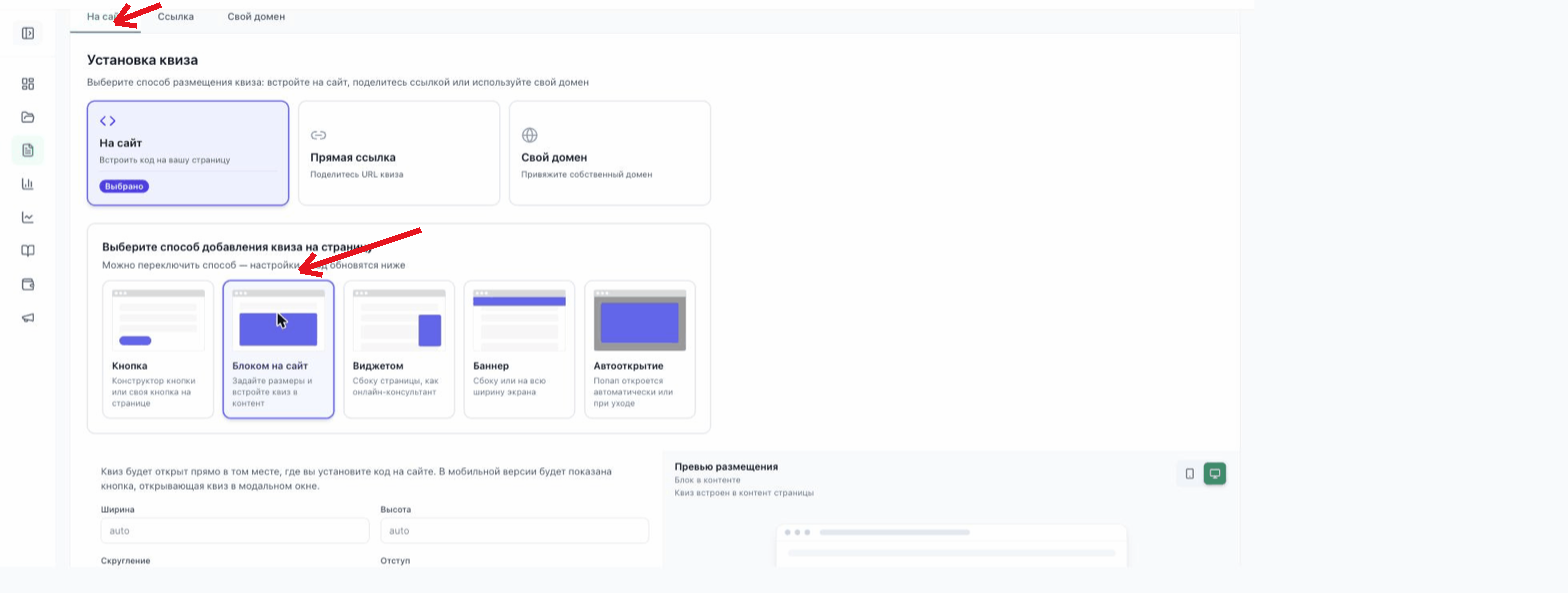
Copy and paste both code blocks
That screen has two code blocks, and you need both:
1. “Paste this code into the
<head> section at the top of the page”: this is the initialization script. Copy it and paste it right before the closing </head> tag.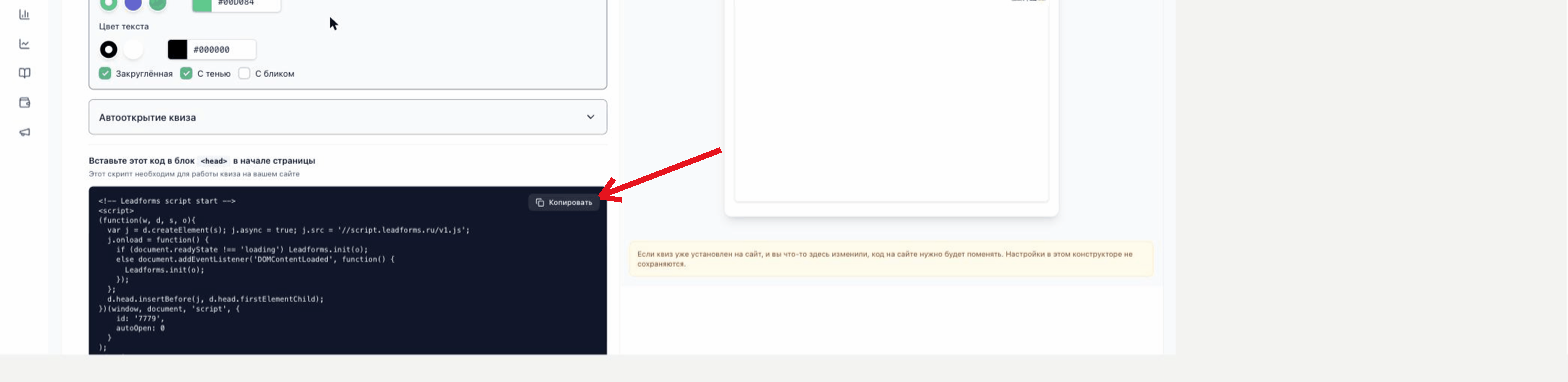
2. “Paste this code anywhere on the page”: this is the block code. Paste it at the exact spot on the page where you want the quiz to appear.
Done
With both code blocks in place, the quiz becomes part of the page content. On mobile, if you turn this on in the settings, a button that opens the quiz in a pop-up appears instead of the block.
