

What the email contains
The lead email arrives right after the person submits the form, with all of their answers and any contact details they left.
Open the email settings
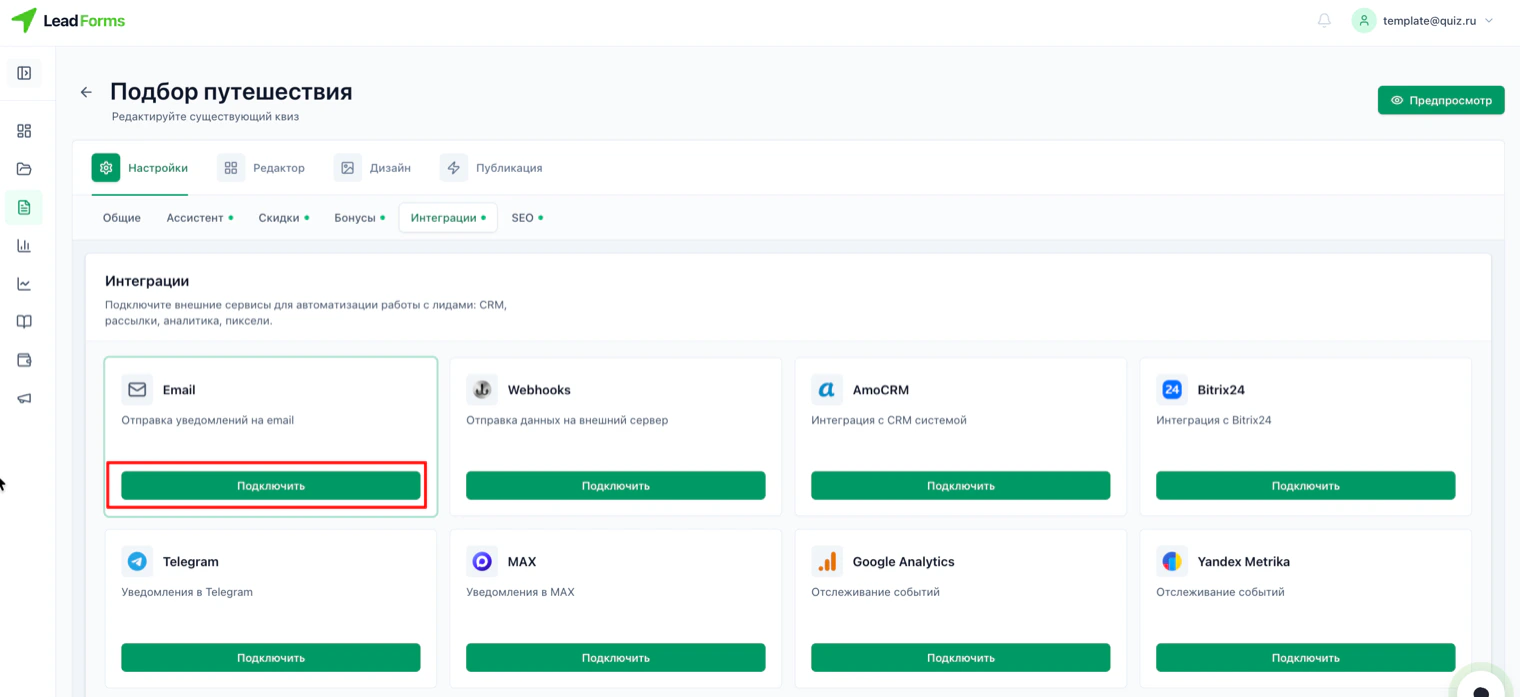
Open the quiz → “Settings” → “Integrations” → Email card → “Connect”.
Add the recipients
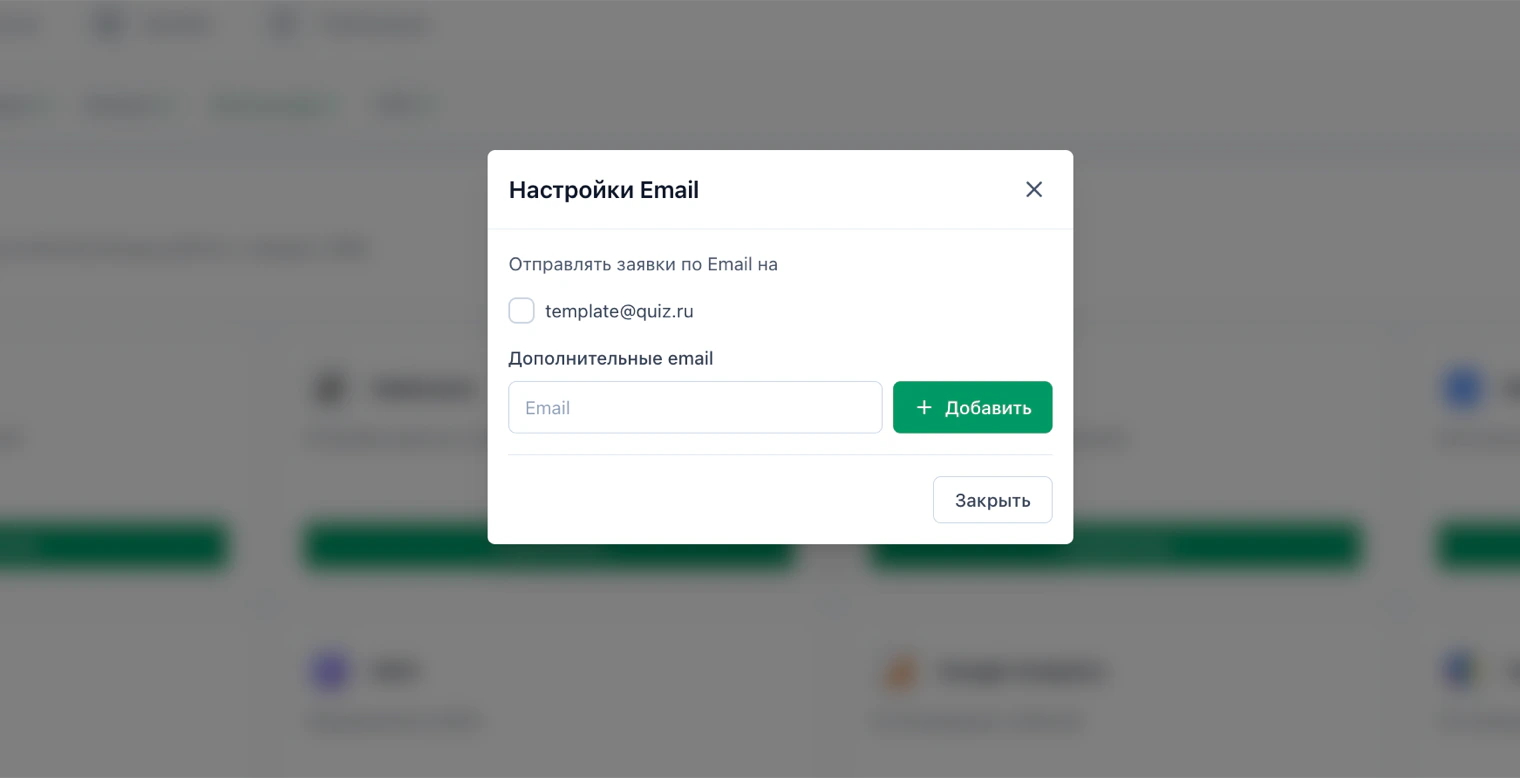
At the top is your account email with the “Send leads by email to” checkbox. Check it if you also want to get leads there.
Below it is the “Additional emails” field: type an address and click “Add”. Repeat for each recipient: you can have several.
Below it is the “Additional emails” field: type an address and click “Add”. Repeat for each recipient: you can have several.
Who gets them
Leads go to the addresses on that list. To stop someone from getting them, delete their address: the others are not affected.
If the emails do not arrive
1. Check your spam folder: with the first messages, email providers are sometimes too cautious. Mark the email as “not spam” and the next ones will go to your inbox.
2. Check the address for typos: an email sent to a mailbox that does not exist is simply lost.
3. Check that leads are coming in. Open the “Leads and reports” section: if the lead is there but the email did not arrive, the problem is with email, not with the quiz.
4. Corporate email sometimes blocks messages from external senders. Try adding a regular account, such as Gmail, and compare: if emails arrive there, the filter is on your mail server.
2. Check the address for typos: an email sent to a mailbox that does not exist is simply lost.
3. Check that leads are coming in. Open the “Leads and reports” section: if the lead is there but the email did not arrive, the problem is with email, not with the quiz.
4. Corporate email sometimes blocks messages from external senders. Try adding a regular account, such as Gmail, and compare: if emails arrive there, the filter is on your mail server.
Stuck with the setup?
If something does not work, and we will sort it out with you.
