

Create a GTM account
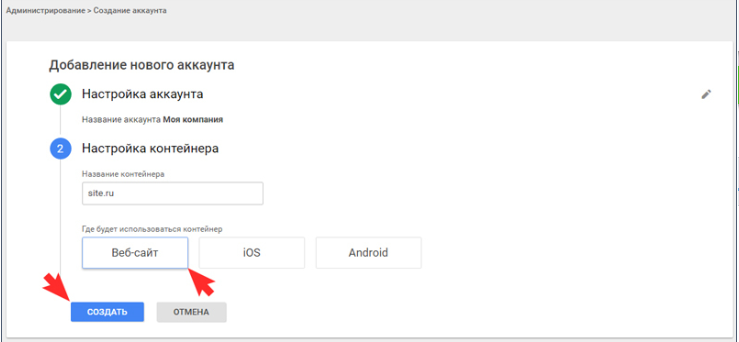
Create an account and add your website to Google Tag Manager.
Install the GTM code on your website
Copy the GTM container code snippets and install them on your website (in
<head> and right after the opening <body> tag).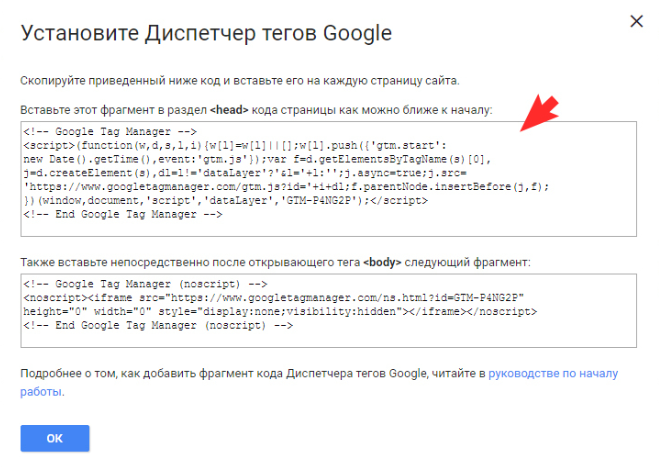
Copy the quiz code in LeadForms
In your dashboard, open the quiz and go to the “Publish” tab → the “On website” subtab. Choose a format that doesn't depend on an exact position, for example “Auto-open” or “Button” with the “Fixed” option on (a floating button). Formats like “Block on the page”, which need a specific spot on the page, are awkward to insert through GTM.
That screen has two code blocks, and you need both: the script for the
<head> section and the code for the element itself (button or pop-up) for the page body.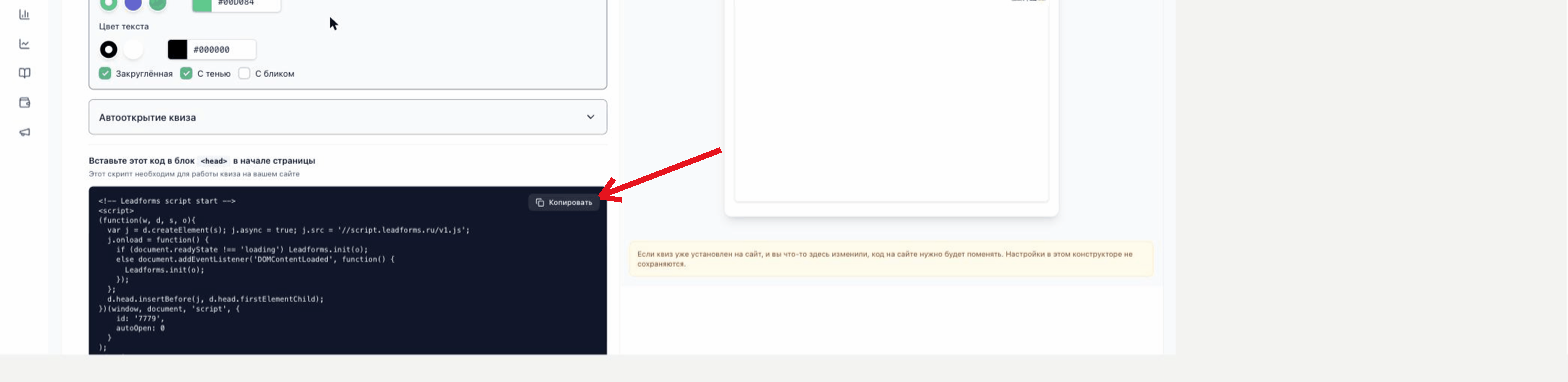
Create a tag in GTM
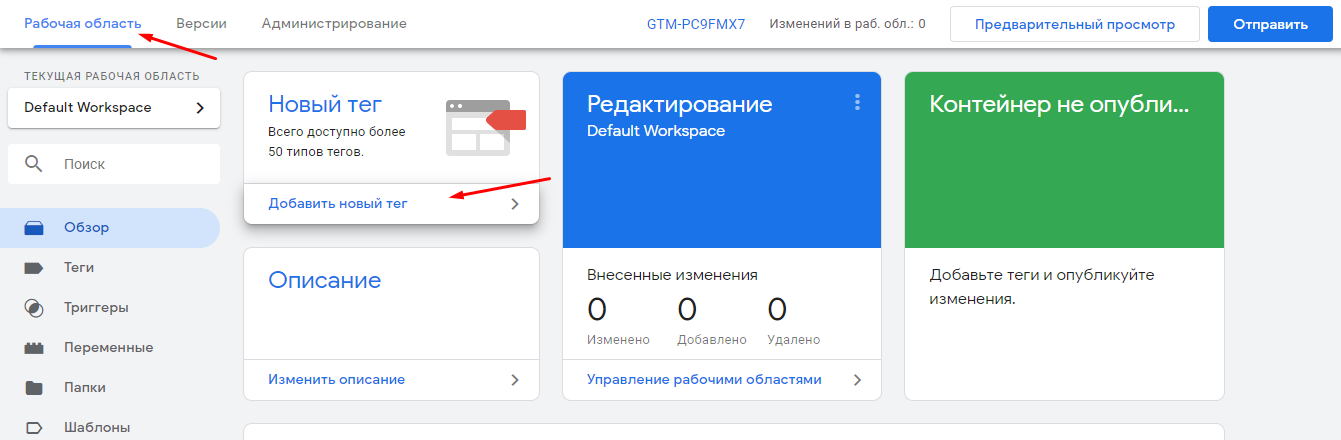
In GTM, go to “Workspace” and click “Add a new tag”.
Paste the quiz code
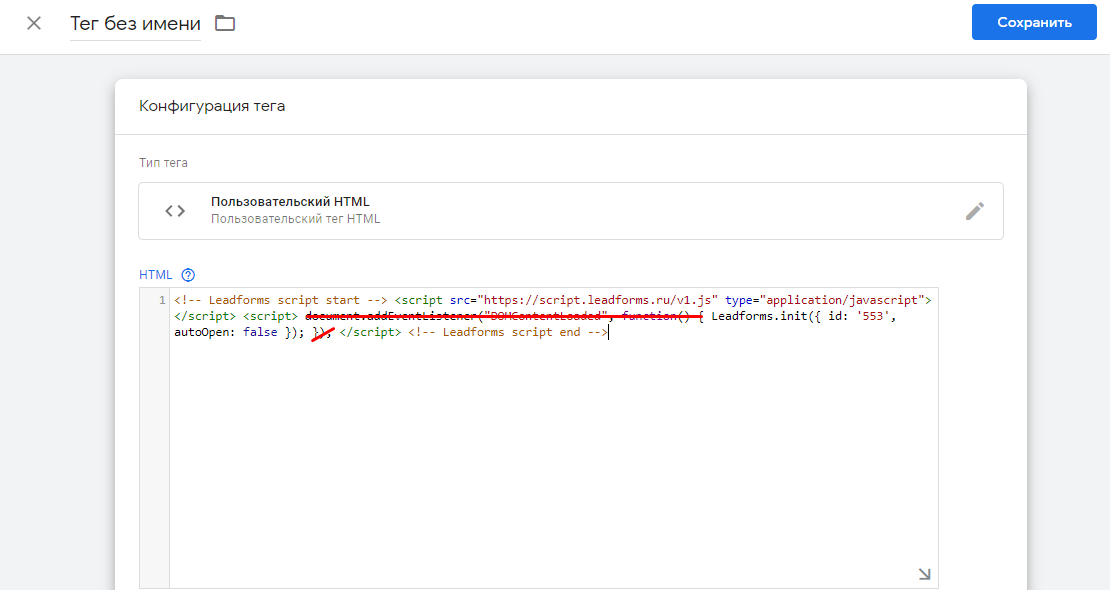
In the tag configuration, choose the “Custom HTML” type and paste both snippets one after the other (the script for the
<head> section first, then the button or pop-up code). The order is not critical: the initialization script waits for everything to load on its own.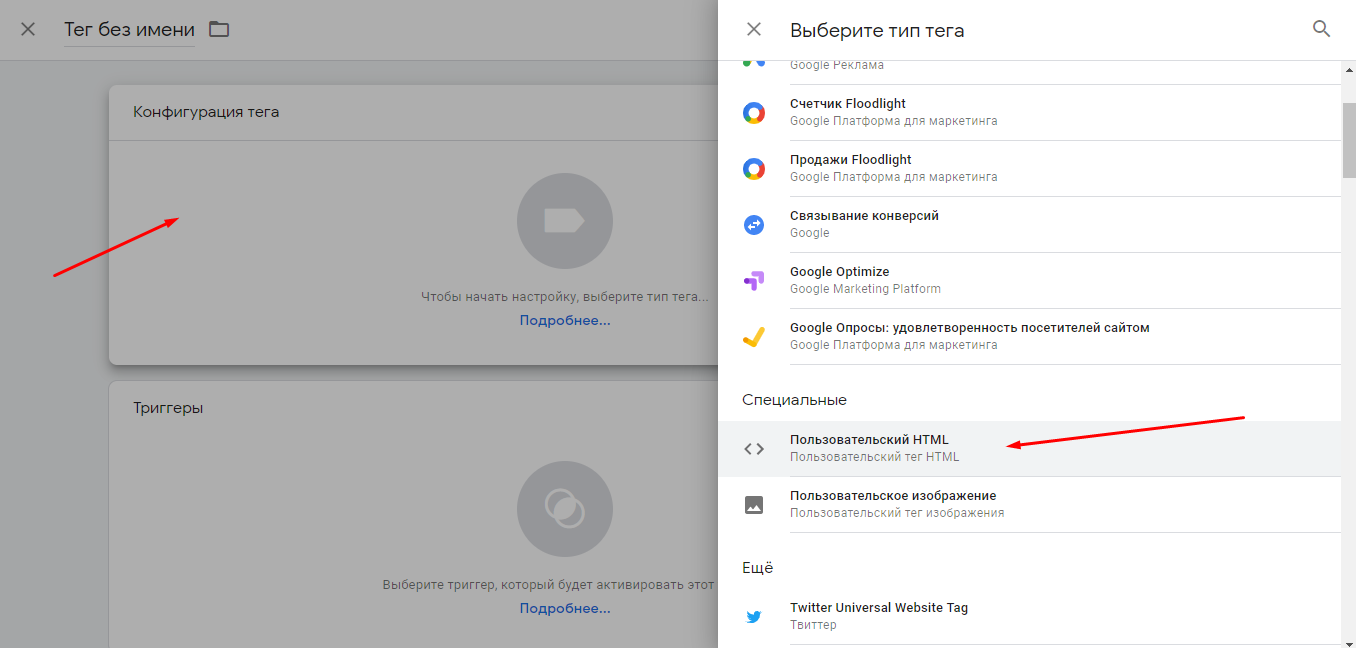
Set the trigger and publish
Choose a trigger, for example all pages, save the tag and push the changes live with the “Submit” and “Publish” buttons.
Done
The quiz will run on your website through GTM in the format you chose: button, auto-open and so on.
