

Turn on results
Open the quiz, go to the “Editor” tab → the “Results” step, and turn on the “Show quiz results” toggle.
Then choose when to show them: “Before the contact form” (the result first, then the form) or “After the contact form” (the form first, then the result, so you are sure to get the contact).
Fill in the result content
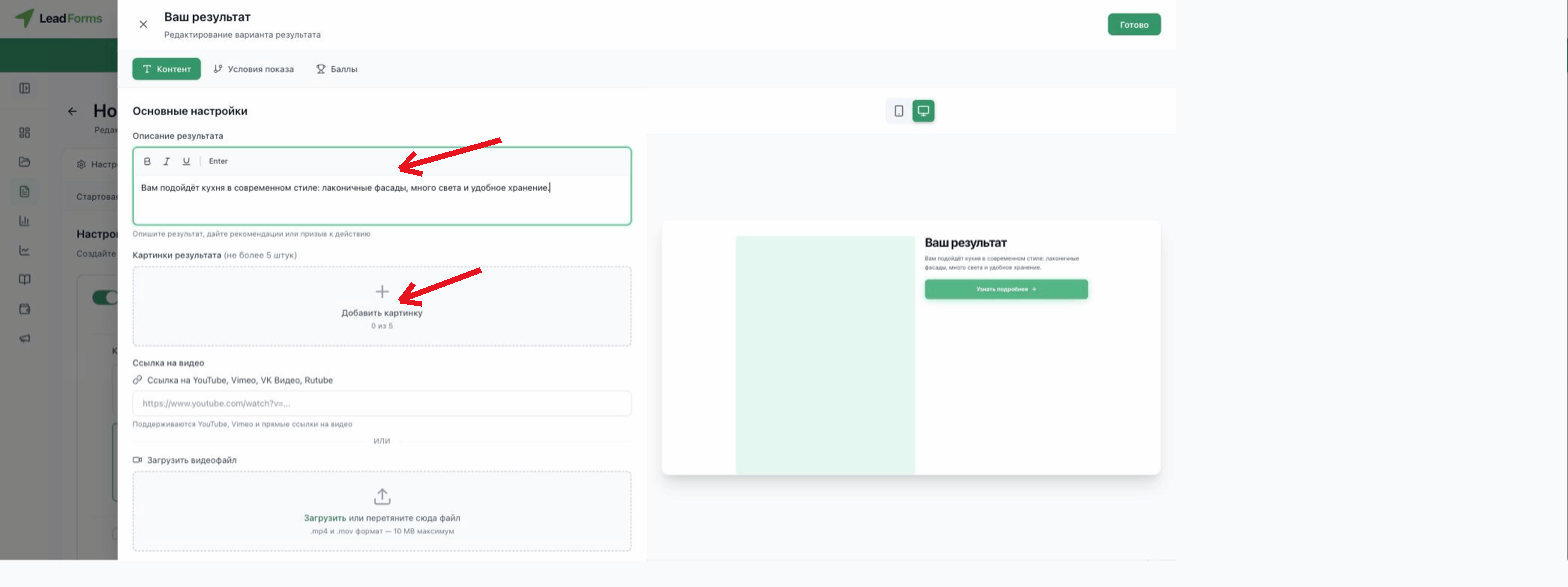
In the “Content” tab, write the result description and, if needed, add images (up to five) or a video. The preview is on the right.
Set when it is shown
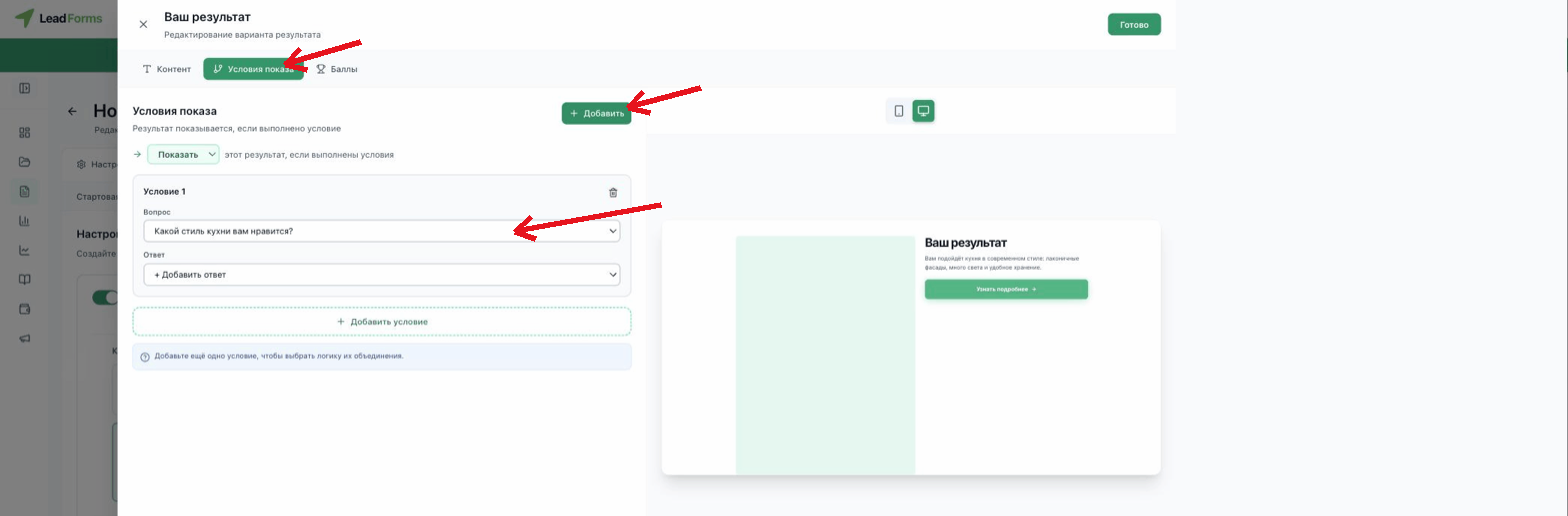
Go to the “Display conditions” tab and click “Add”. Specify the question and answer that will trigger this result.
A result without conditions is the default one: it is shown when no result with conditions matches.
Multiple conditions and how they combine
Use the “Add condition” button to add several conditions. A switchable label, “AND” / “OR”, appears between them: click it to change the logic.
“AND”: the result is shown only if all conditions are met.
“OR”: the result is shown if any of them is met.
“OR”: the result is shown if any of them is met.
Multiple results
To show different results depending on the answers, add more options with the “Add result” button and give each one its own content and conditions.
If you check “Show multiple results”, the person sees all matching options at once and picks the one that suits them best, instead of seeing only the first match.
Additional settings
The “Results” step also has:
“Retake button”: available only if results are shown before the form.
“Share result”: adds social media share buttons.
“Send by email”: sends the result to the person's email.
“Share result”: adds social media share buttons.
“Send by email”: sends the result to the person's email.
You can also set up “Points”: first assign points to each option with the “Set up points” button, then in the result editor, on the “Points” tab, turn on the condition that shows the result only at a certain score. For calculation quizzes, such as a quote based on parameters, there is the “Set up quote calculator” button with its formula.
