

Option 1: use a Taplink button
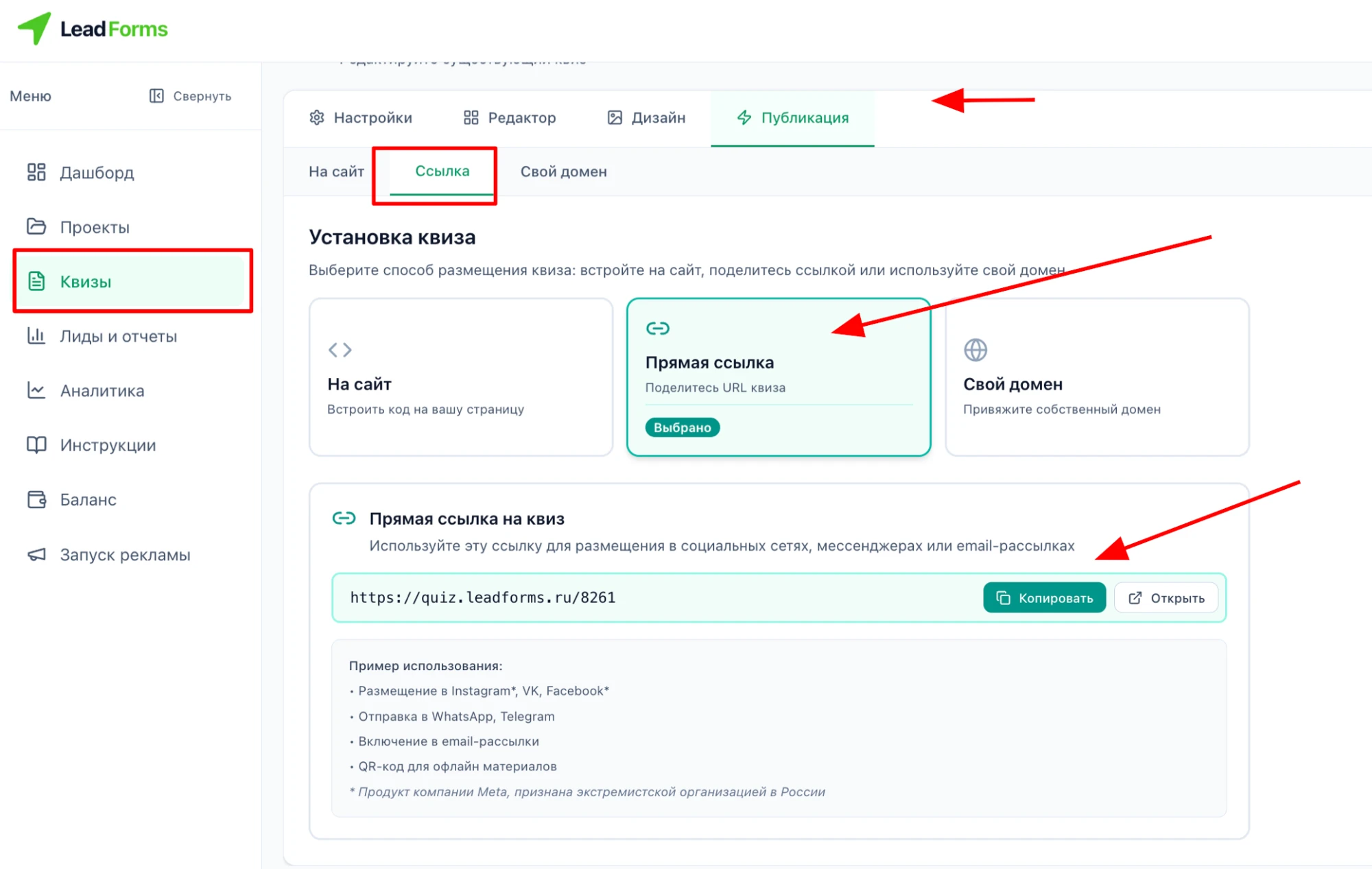
Open the quiz → “Publish” tab → “Link” subtab. Copy the direct quiz link.
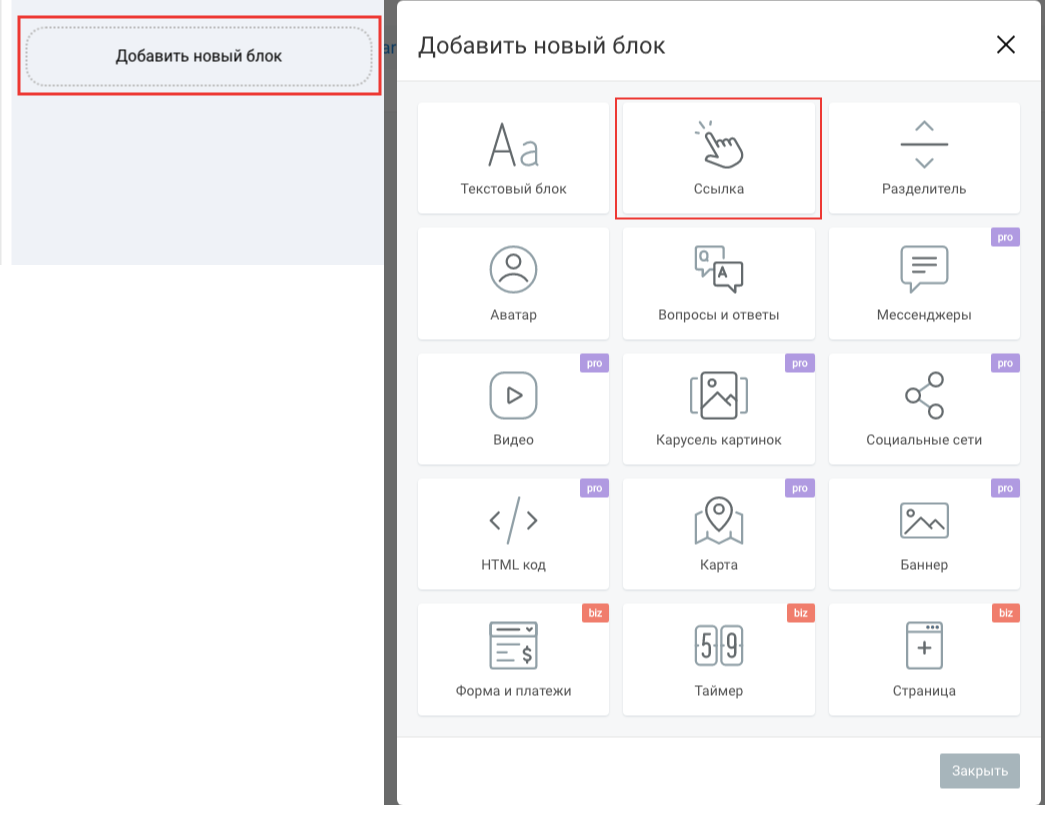
Add a new block in the Taplink editor
Click “Add block” and choose “Link”.
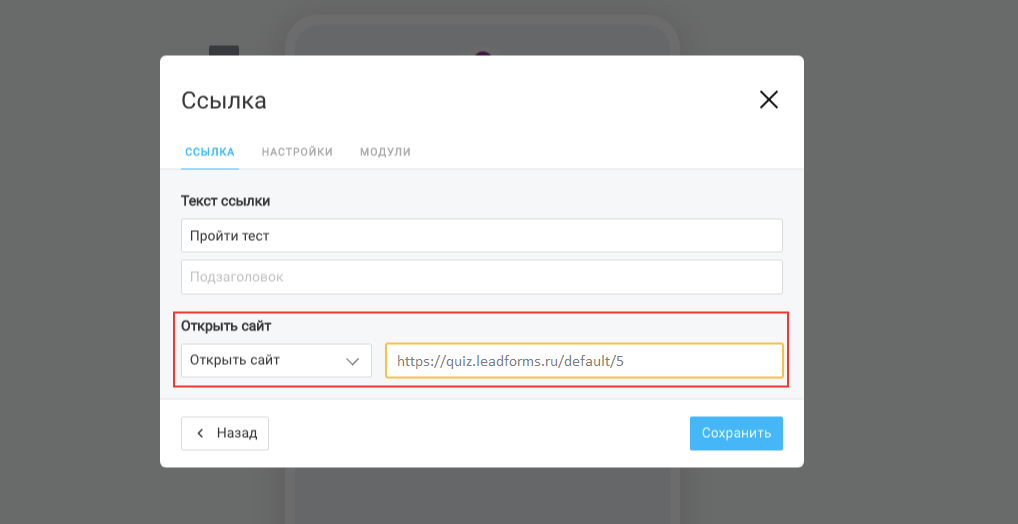
In the window that opens, type the button text
Choose the “Open website” option, paste the copied link and click “Save”.
Done! The quiz is in place.
Option 2: use the LeadForms button
Installing the initialization code
In the quiz editor, open “Publish” → “On website” and choose the installation type, for example “Button”.
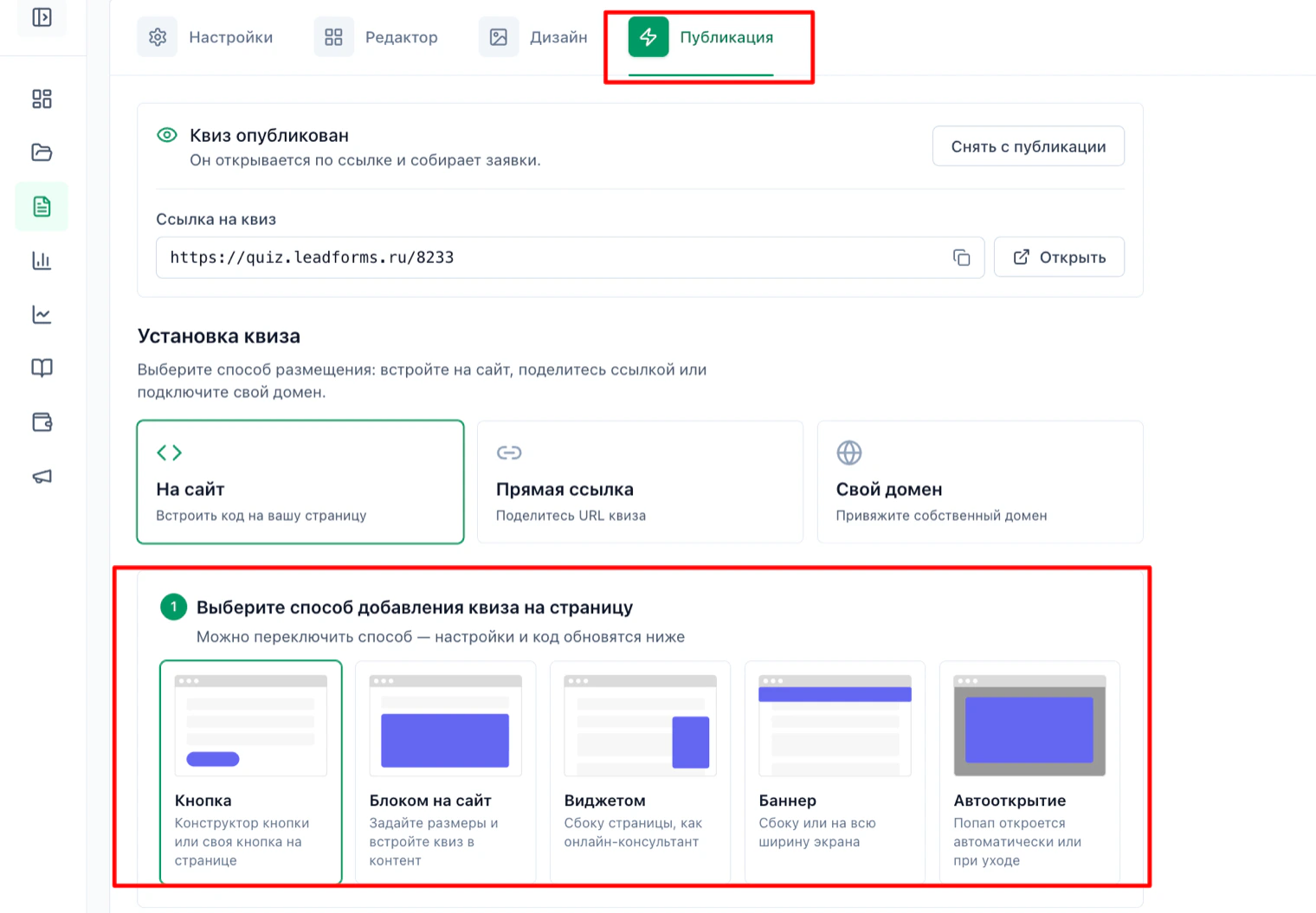
Copy the script for the
<head> block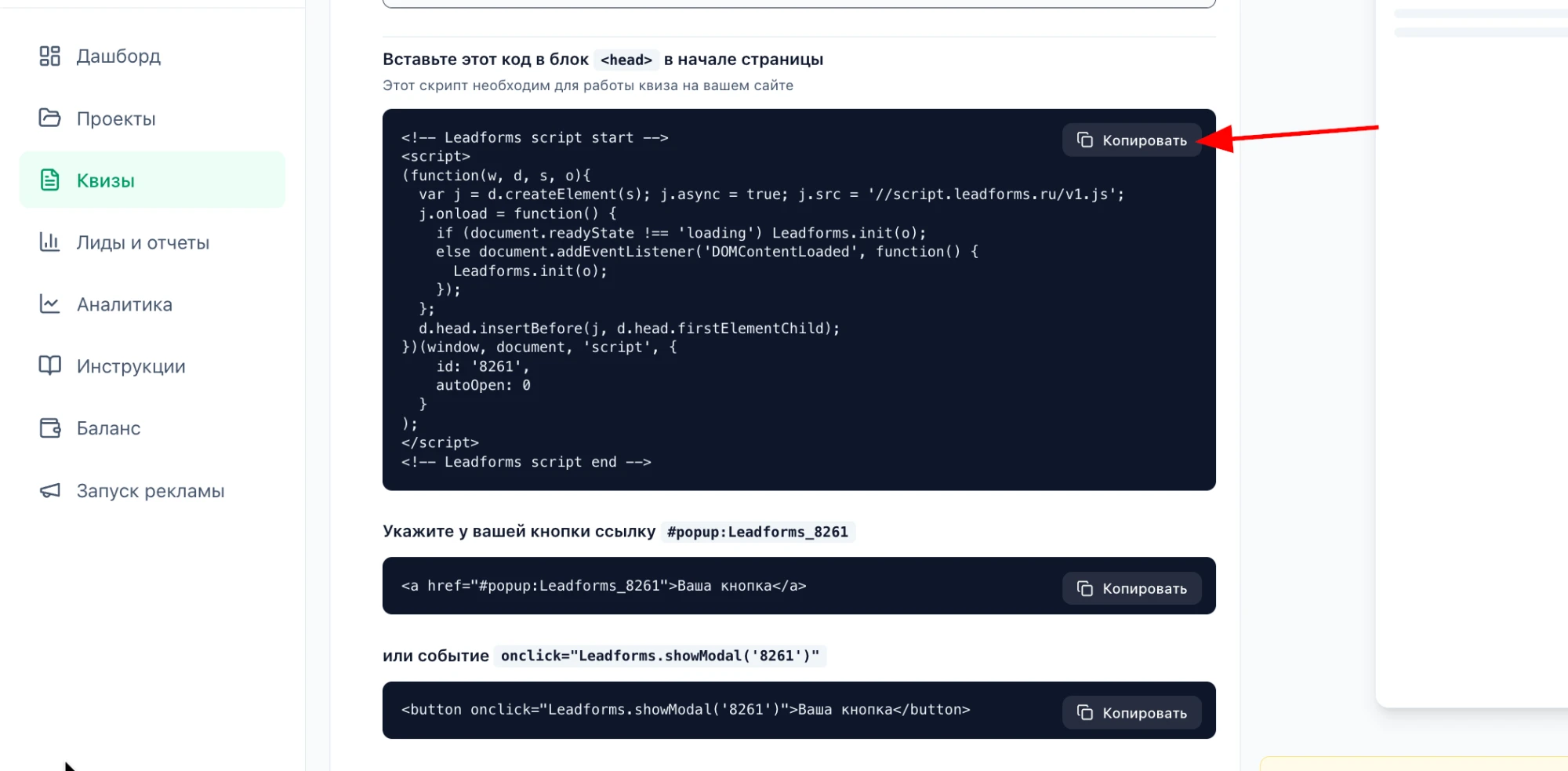
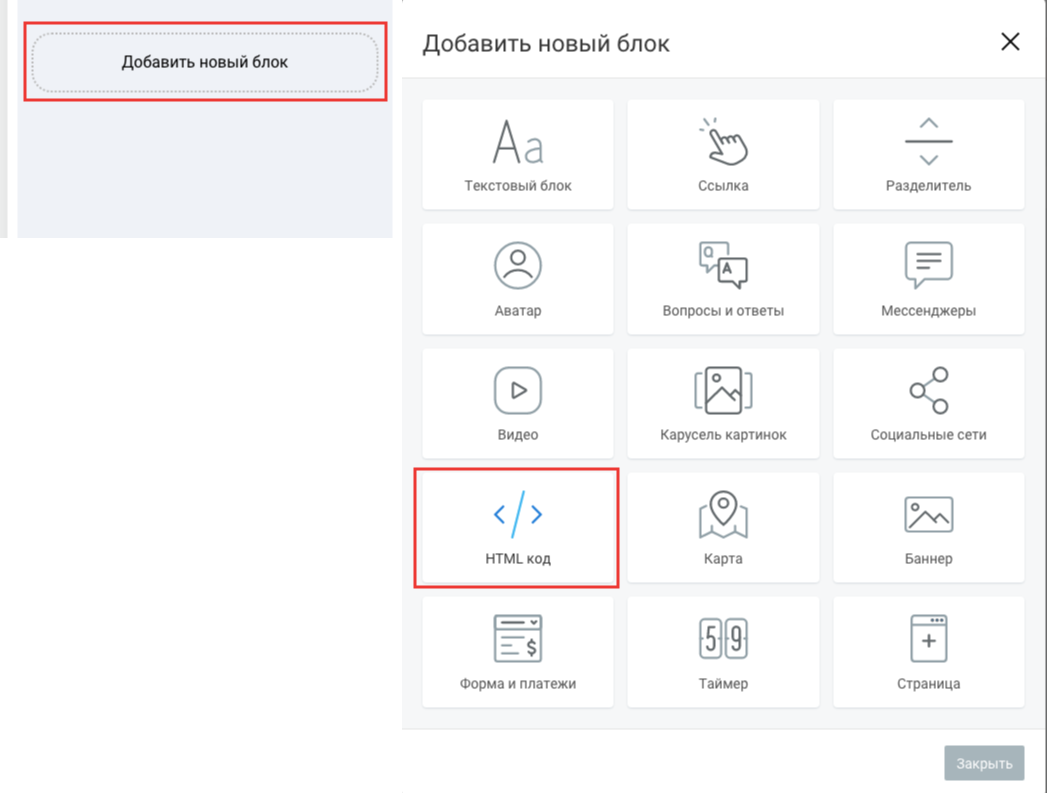
Add a new block in the Taplink editor
Click “Add block” and choose “HTML code”. Note that this block only works on paid Taplink plans.
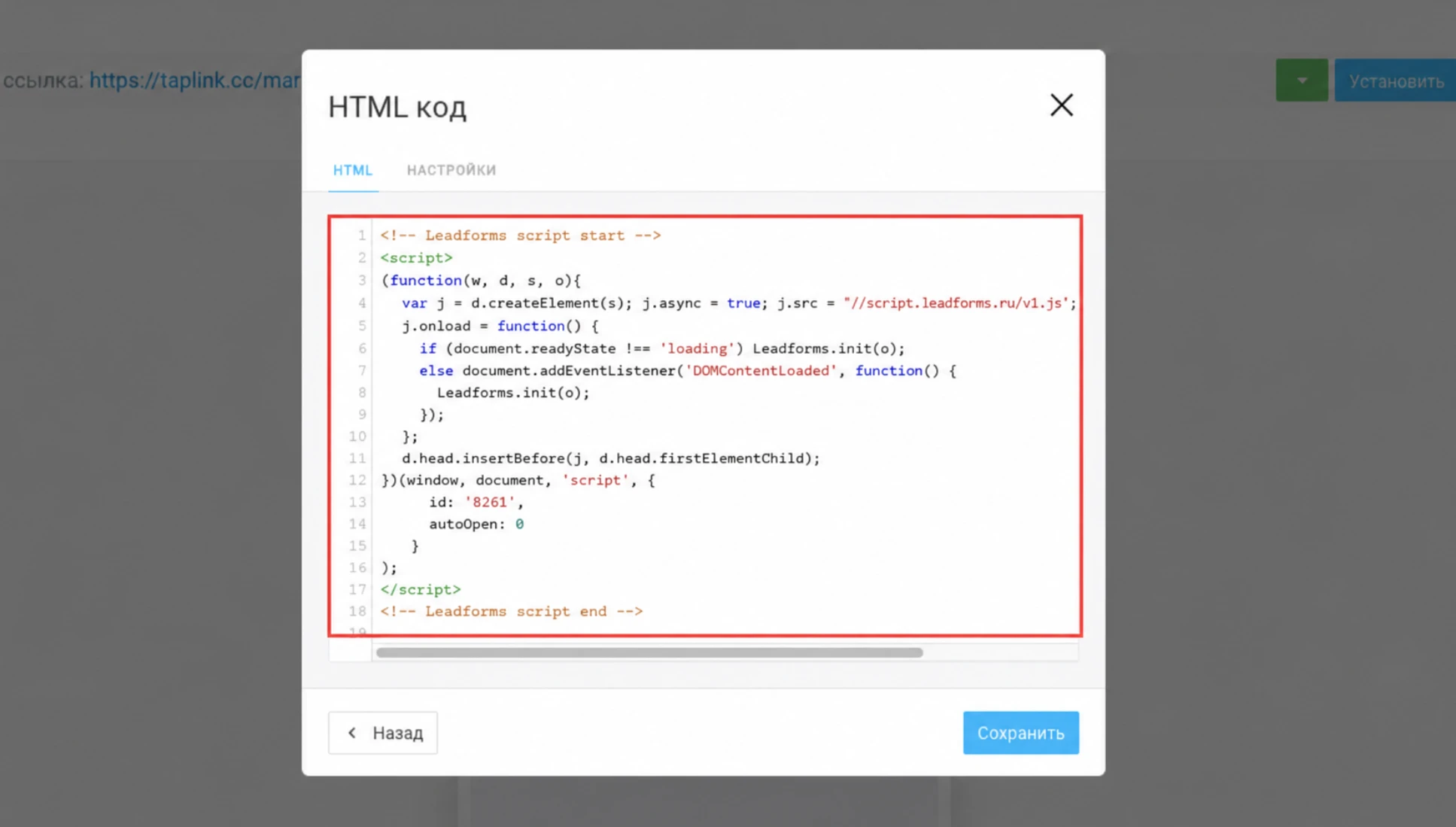
Paste the script you copied from your LeadForms dashboard
Go back to the LeadForms editor
Below the script for the
<head> block there is a second code, “Paste this code anywhere on the page”. Copy it: this is the code that renders the button.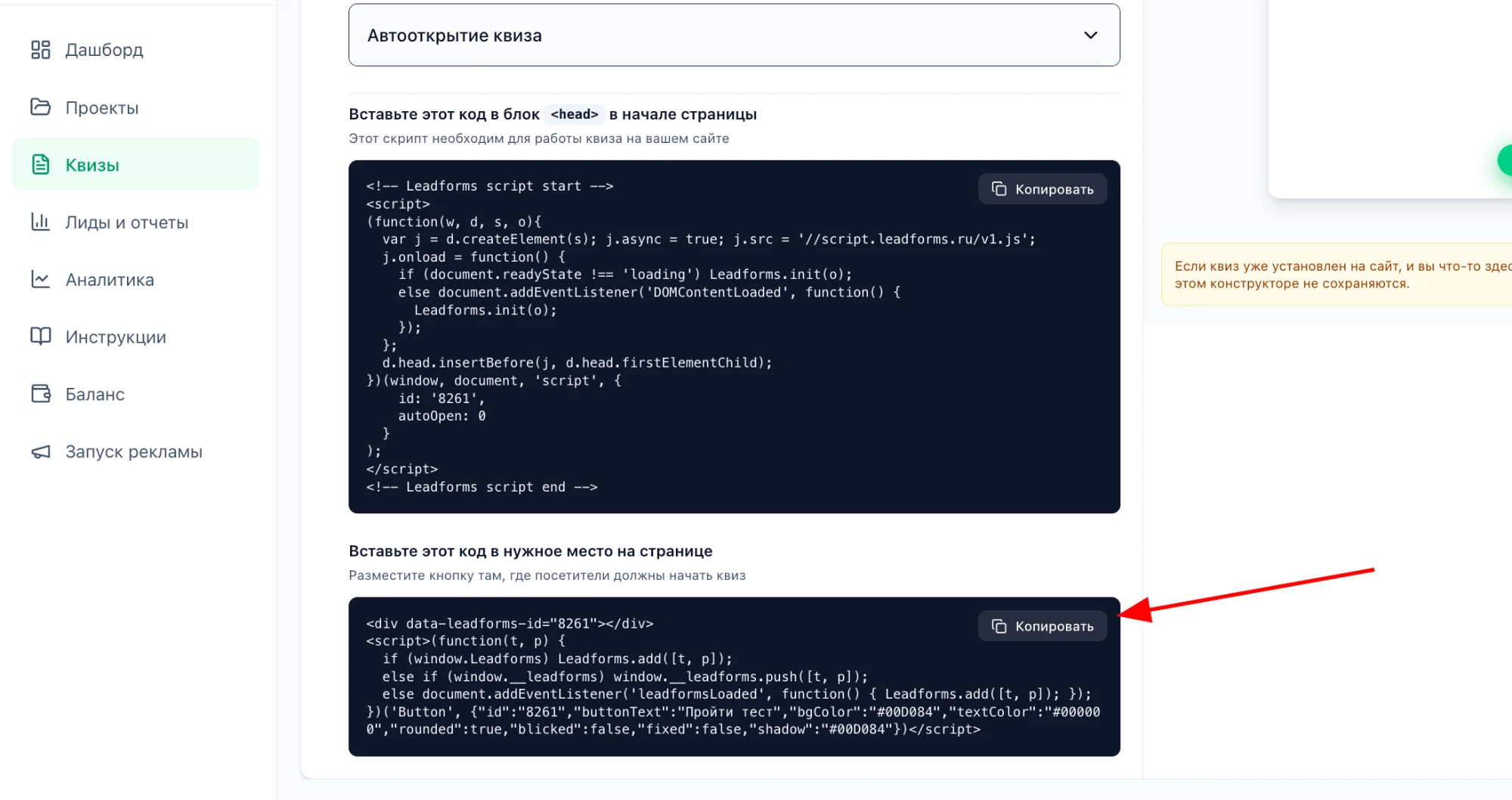
Go back to the Taplink editor
Paste the code into the same block where you put the initialization code, and save your changes.
Done! The quiz is in place.
Stuck with the setup?
If something does not work, and we will sort it out with you.
