

Copy the button code and the script
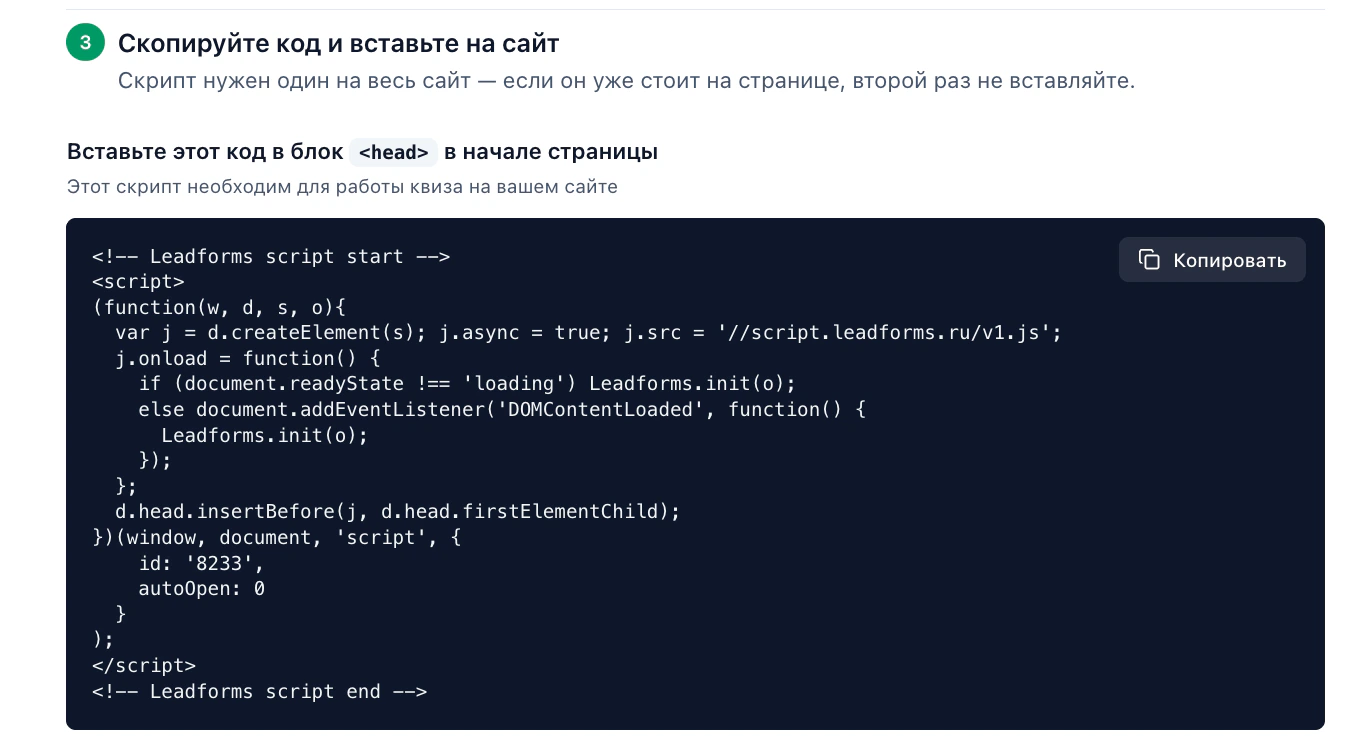
Let's start with the button from the LeadForms editor. Open “Publish” → “On website”, choose the “Button” type and adjust how it looks. Copy both code blocks: the script for the
<head> section and the button code.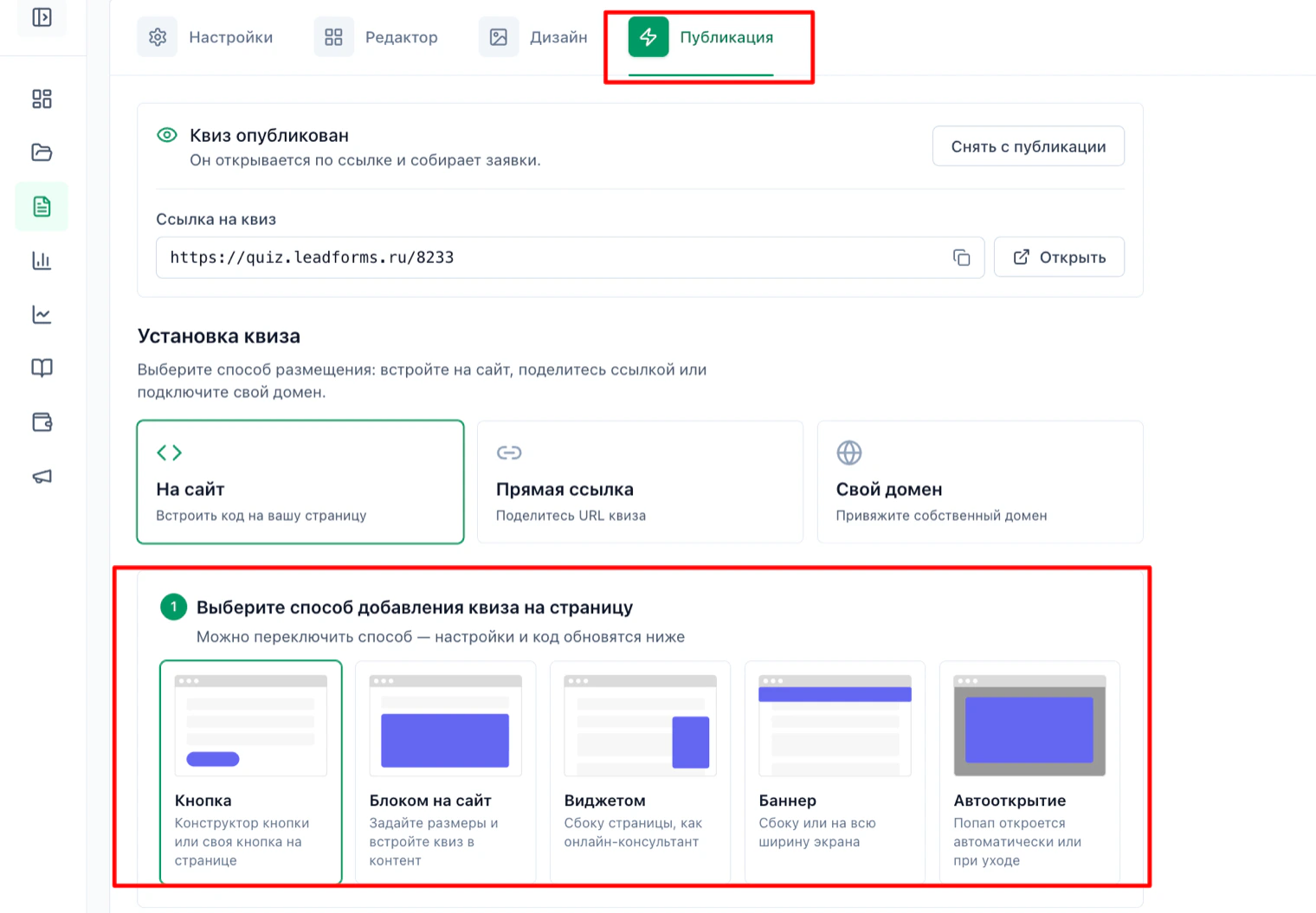
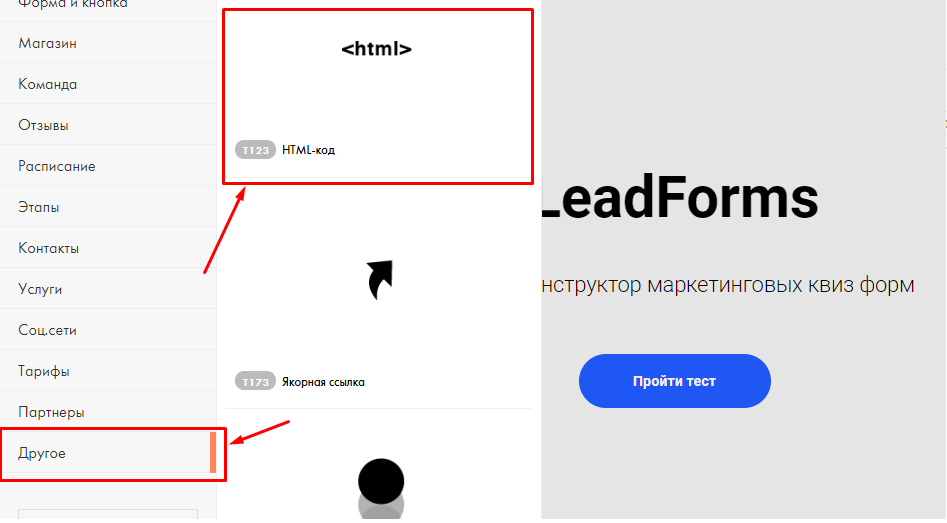
Add a new block
Open the Tilda editor and add an “Other / HTML code” block
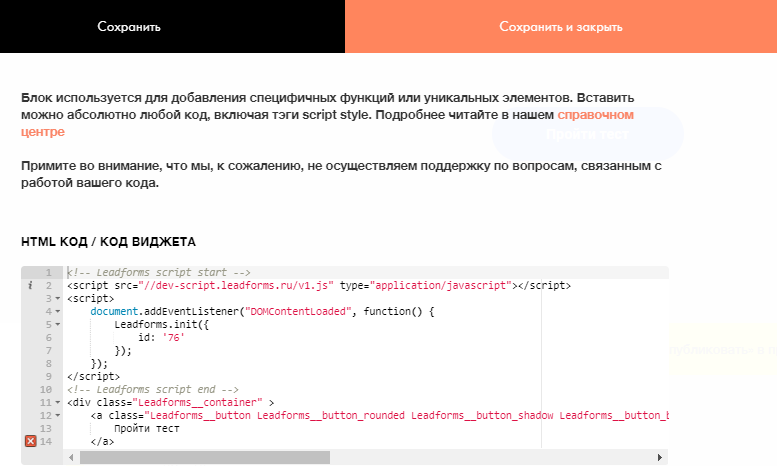
Paste the code
Open the content of the block you just added, paste the copied code there and save.
Note that the HTML code block only works on paid Tilda plans. So for the quiz to work, you need a Tilda Personal or Tilda Business plan.
Note that the HTML code block only works on paid Tilda plans. So for the quiz to work, you need a Tilda Personal or Tilda Business plan.
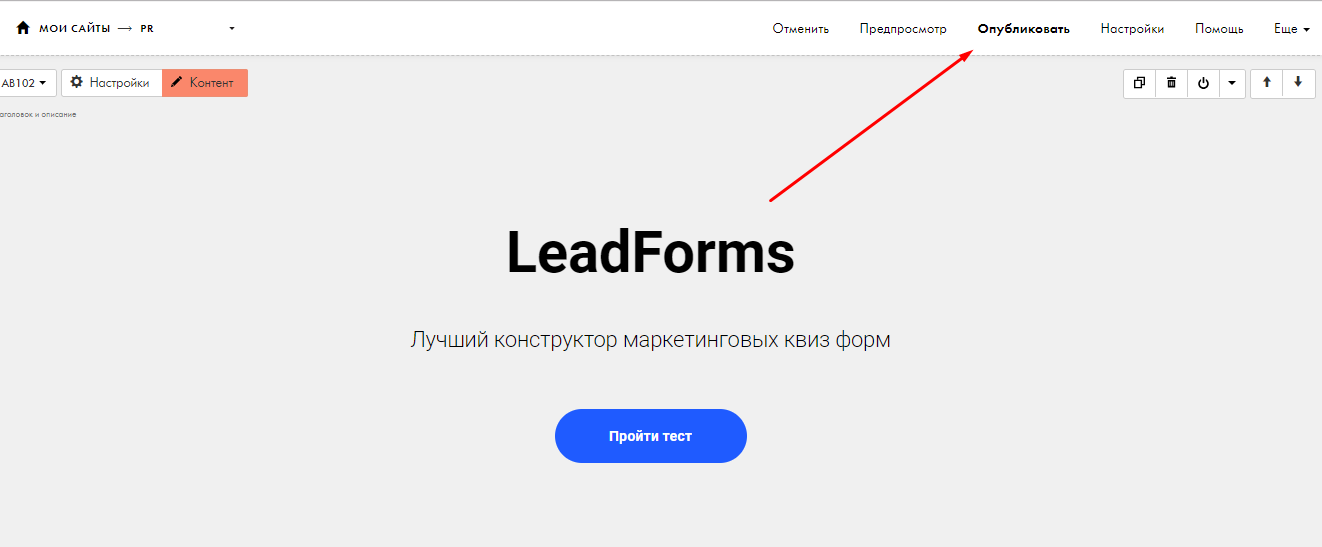
Publish the page
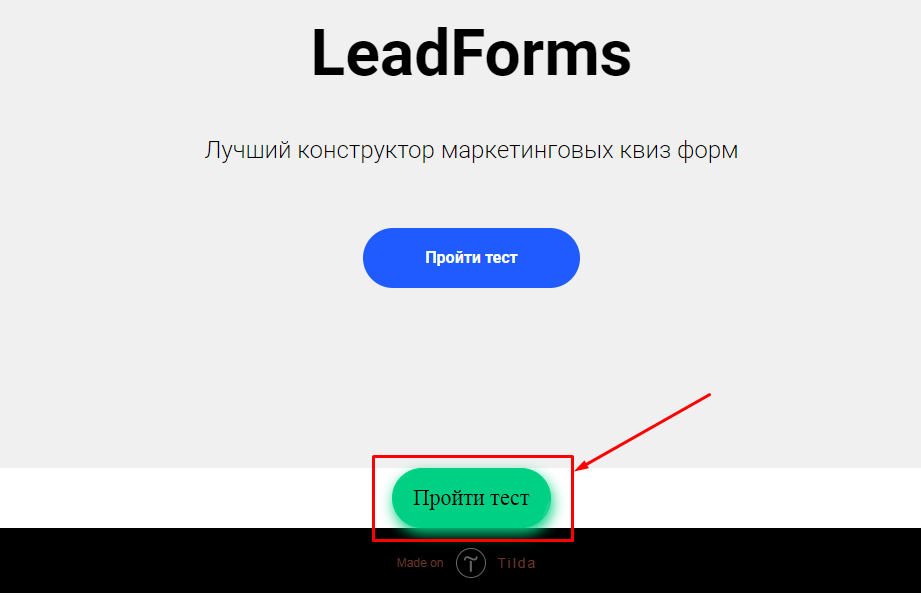
Now the option with a button from the Tilda editor
Open the “Custom button” subtab
In the “Custom button” subtab, copy the link in the
#popup:Leadforms_ID format. Tilda has plenty of good-looking buttons: pick the one you like.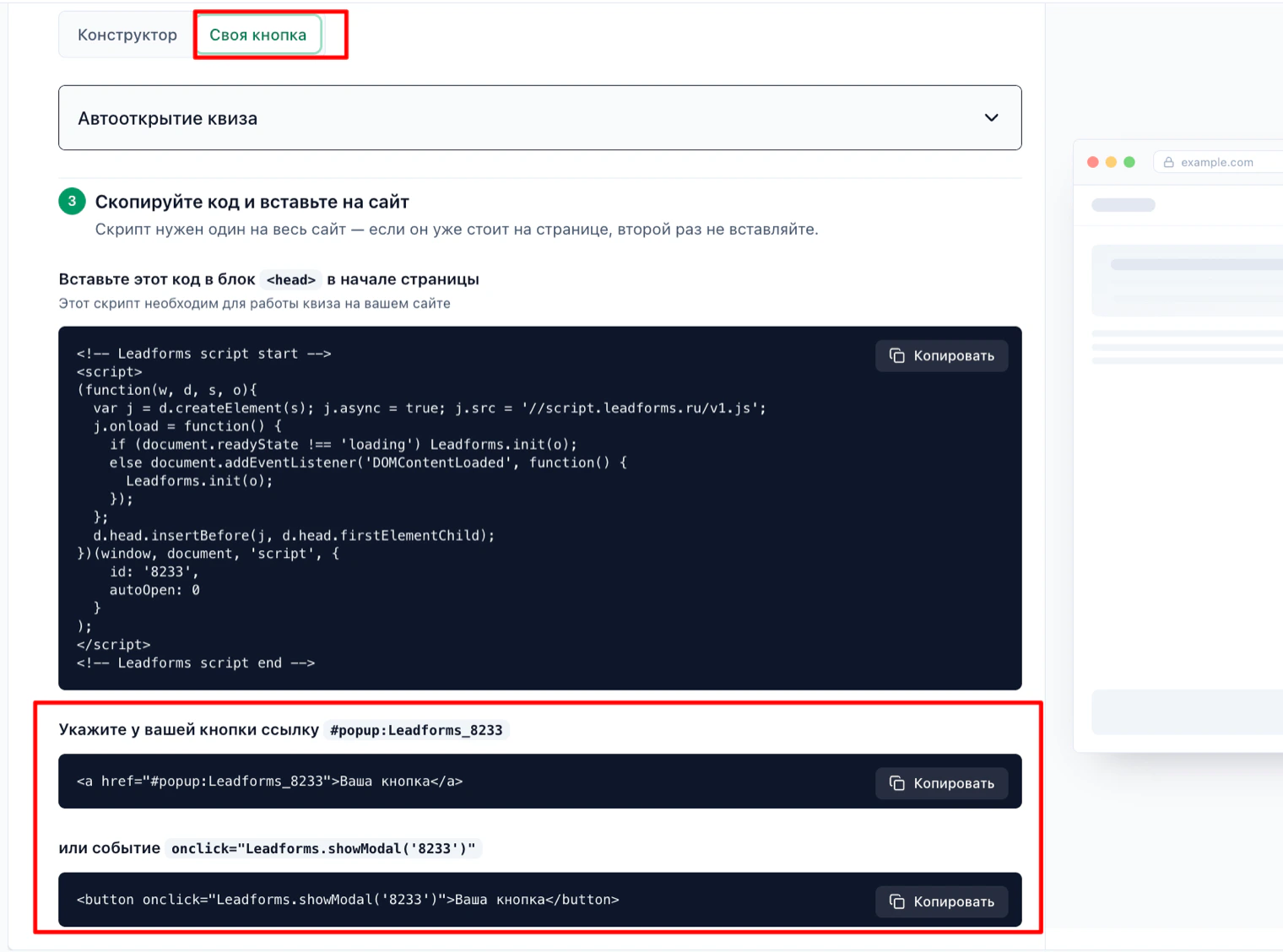
Add a new block
Open the Tilda editor and add an “Other / HTML code” block
Copy the script for the
<head> sectionThe script is in the same tab, above the link block: it is the top code block, with its own “Copy” button.
Paste the script into the HTML code block
Open the content of the block you just added, paste the copied code there and save.
Note that the HTML code block only works on paid Tilda plans. So for the quiz to work, you need a Tilda Personal or Tilda Business plan.
Note that the HTML code block only works on paid Tilda plans. So for the quiz to work, you need a Tilda Personal or Tilda Business plan.
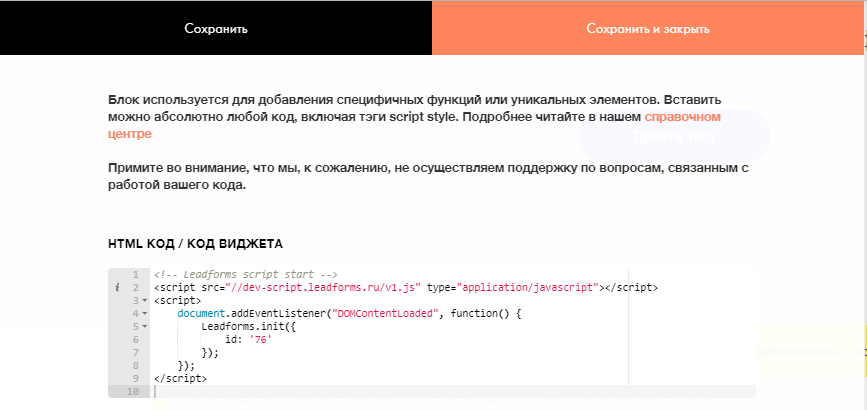
Add the button
Add a block with a button from the Tilda block library, any one from the forms and buttons section, and open “Content”.
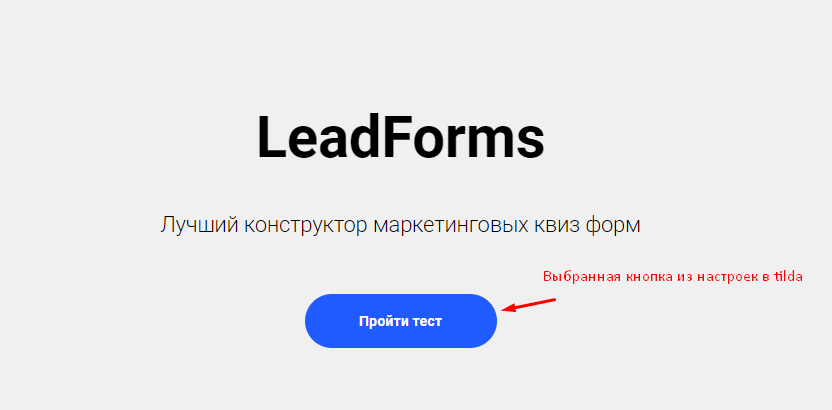
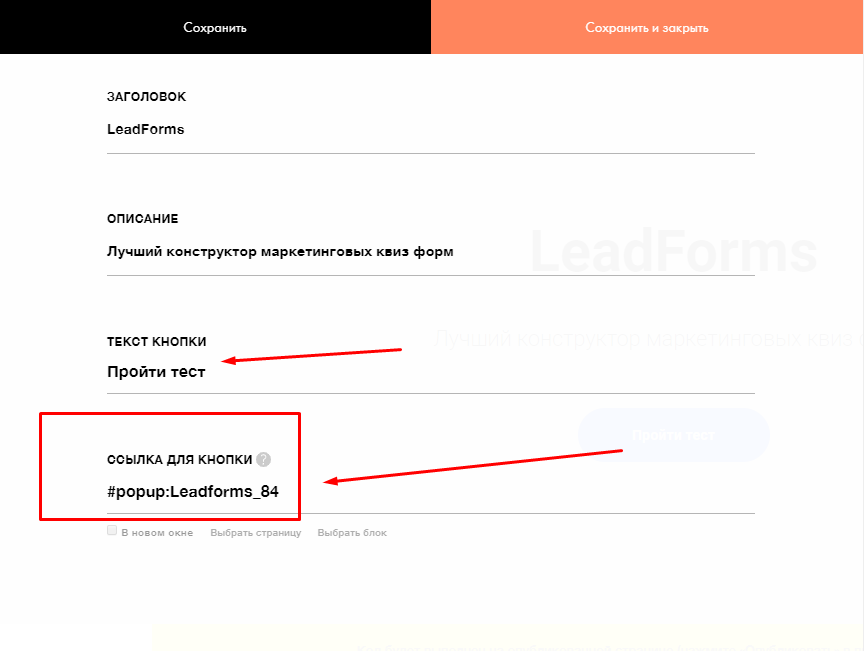
Enter the link
In the “Button link” field, enter: #popup:Leadforms_ID (replace ID with the unique ID of your quiz) Then save.
Publish the page
Your quiz is now live on your Tilda website.
Having trouble with the setup?
If something doesn't work, and we'll sort it out with you.
