

Log in to your UniSender account
Go to “Contacts” → “Contact lists”
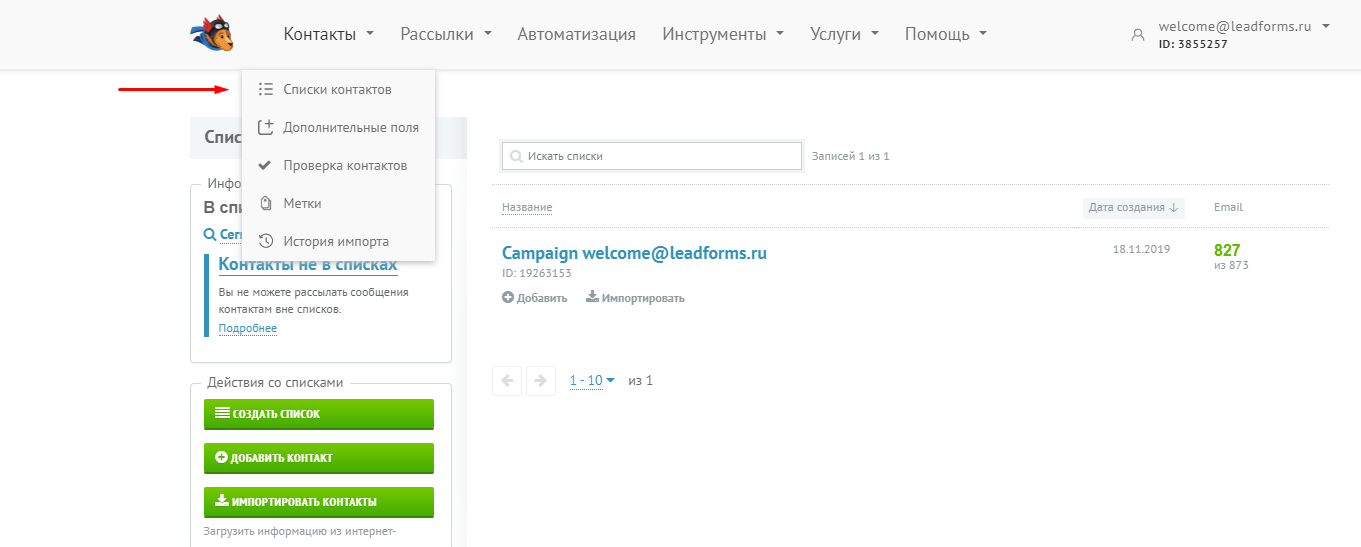
In the actions block, click “Create list”
Name the list and save it
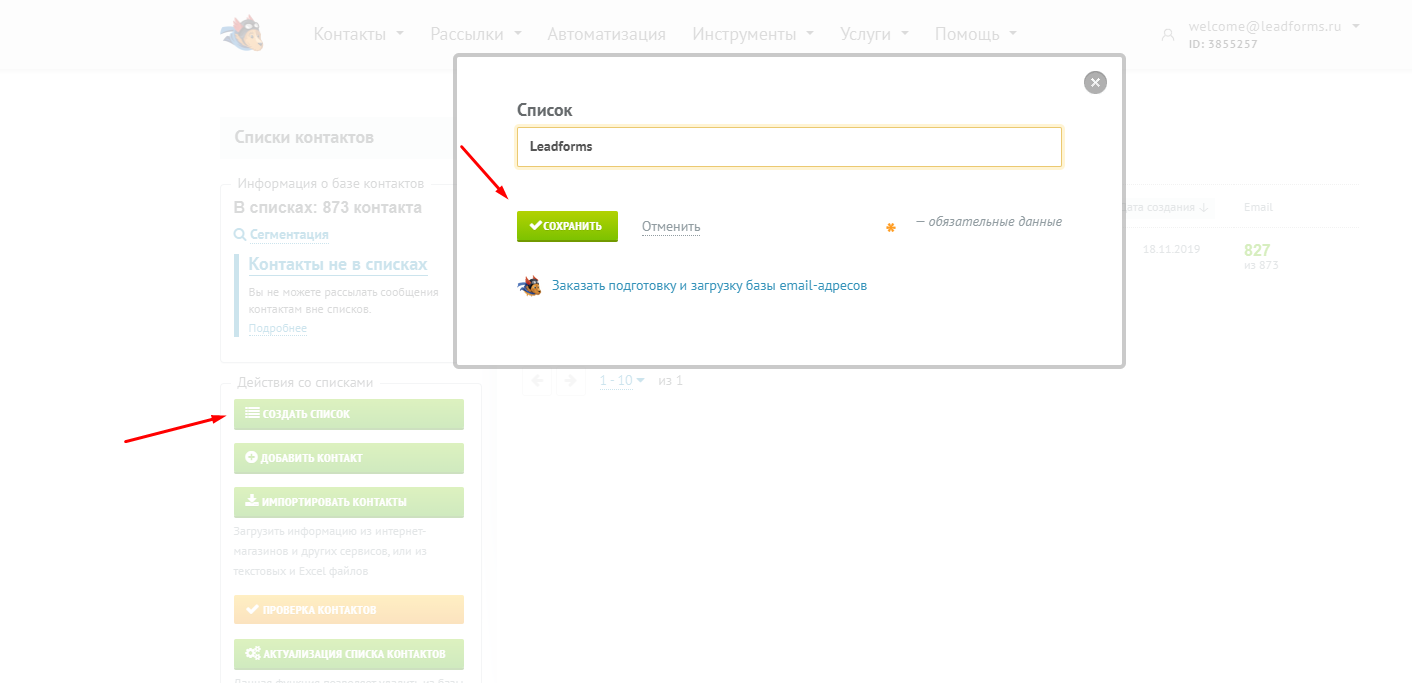
Open the list by clicking its name
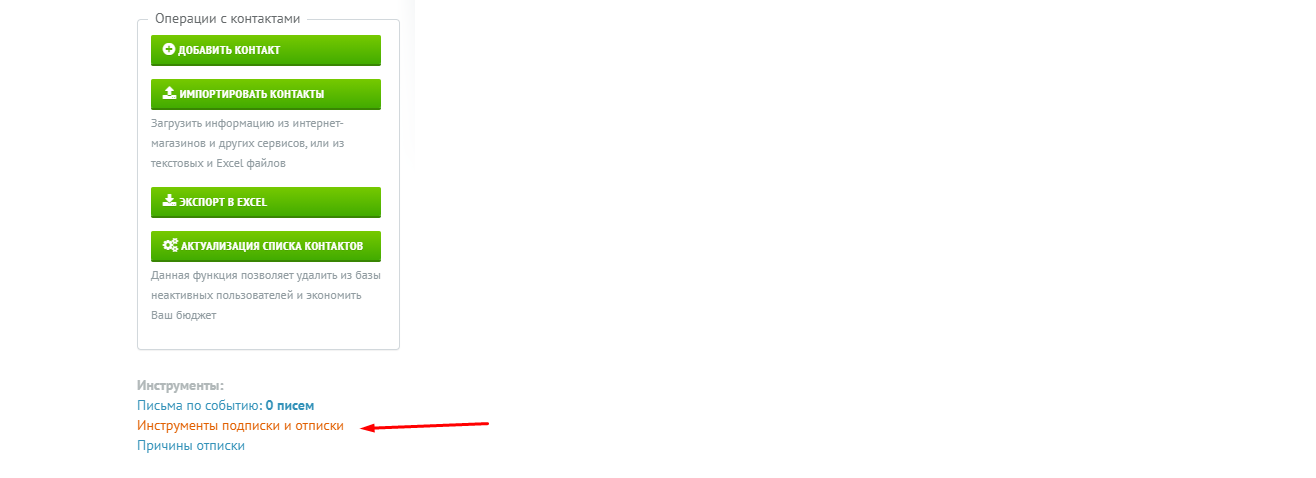
In the tools block, open “Subscribe and unsubscribe tools”
Fill in the fields, create the email and save.
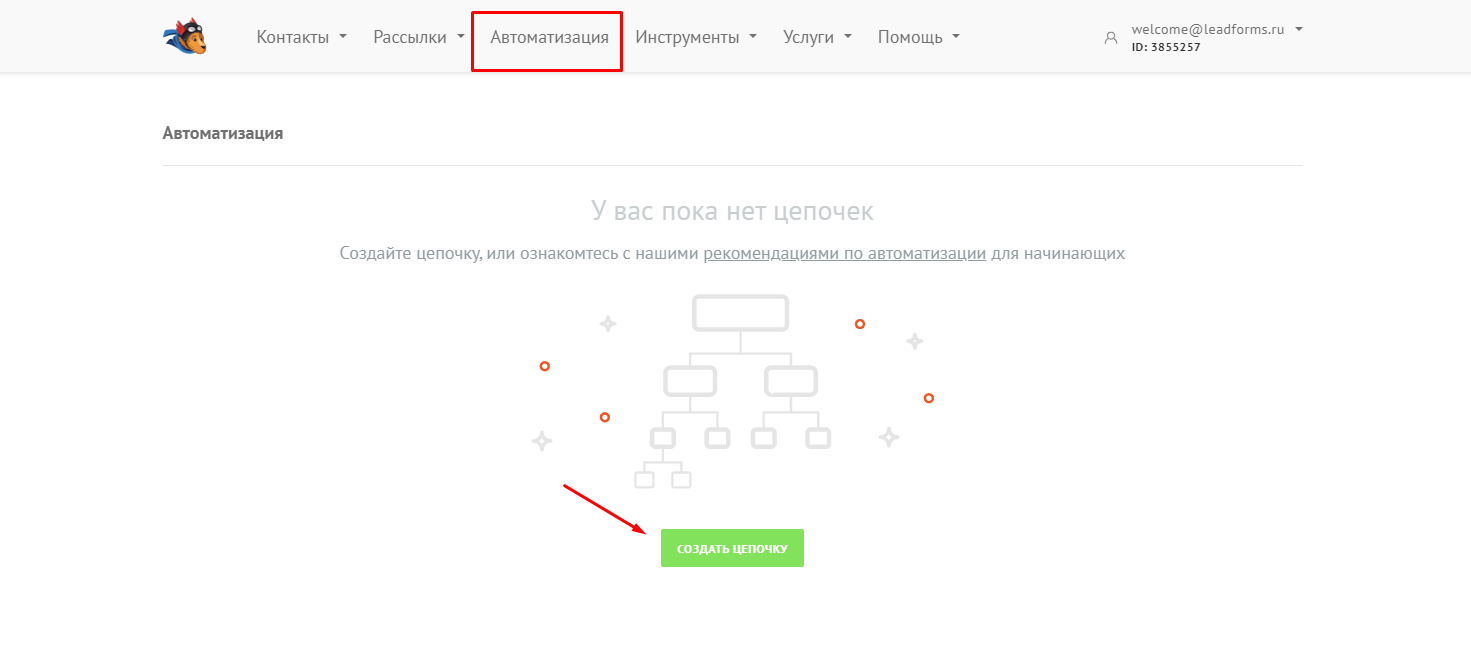
Go to “Automation” → “Create sequence”
Add the sequence nodes
A sequence needs a starting event, an action or check, and an outcome
Name the sequence and save it
Make sure no node has errors or empty fields: they are highlighted in red
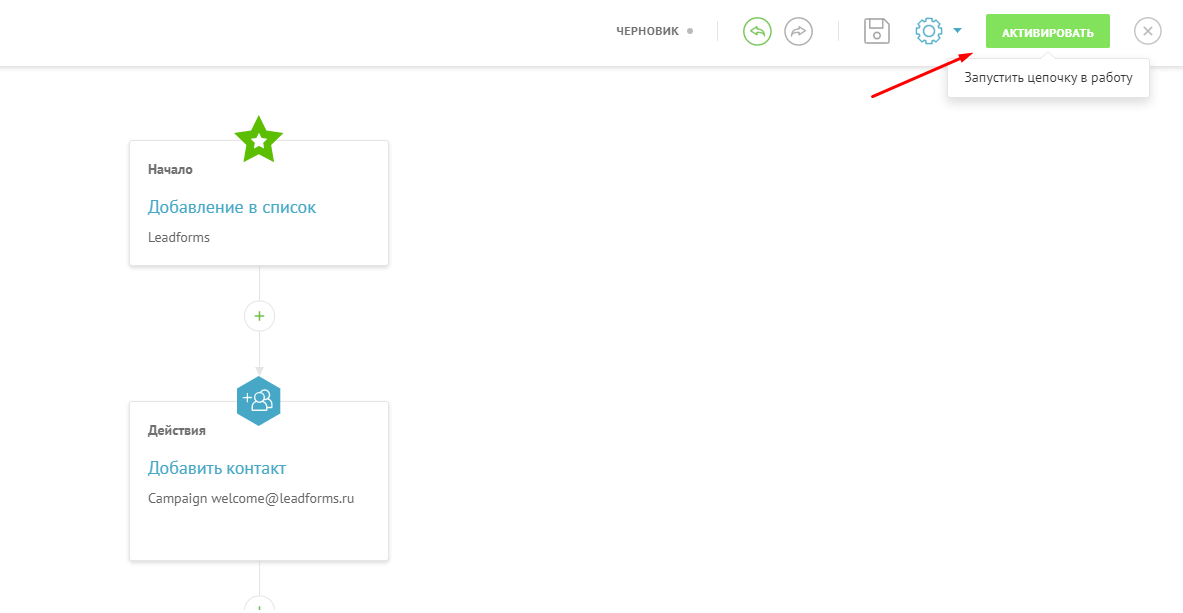
Click “Activate”
This starts the workflow you built.
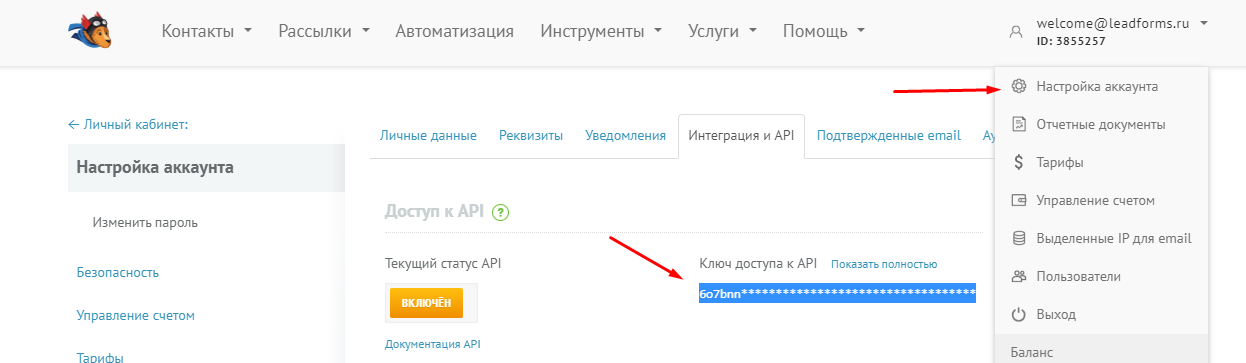
Go to your account settings and open the “Integration and API” tab
Copy the API access key
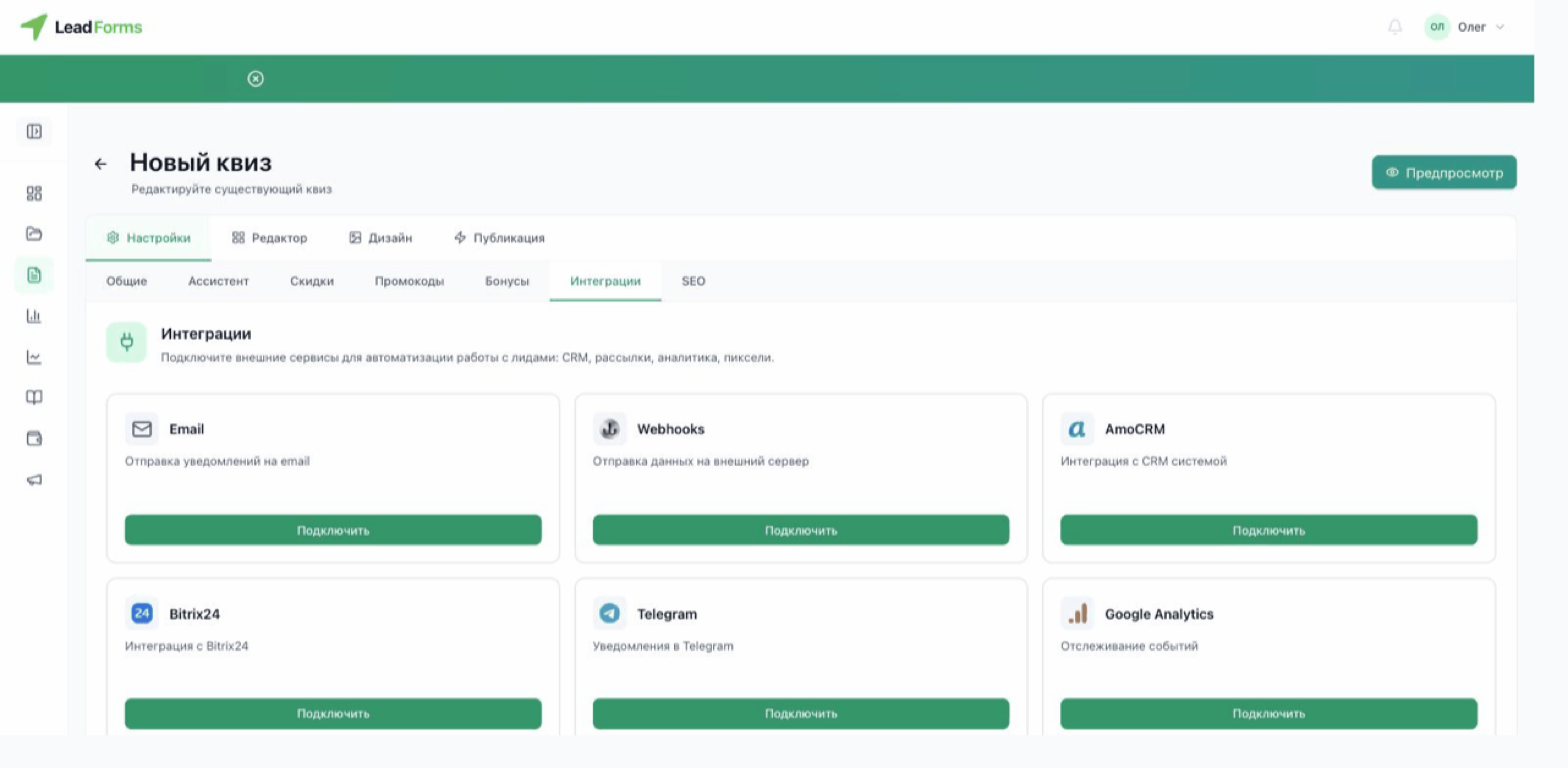
Connect the integration in LeadForms
Open the quiz and go to “Settings” → “Integrations” → the Unisender card → “Connect”.
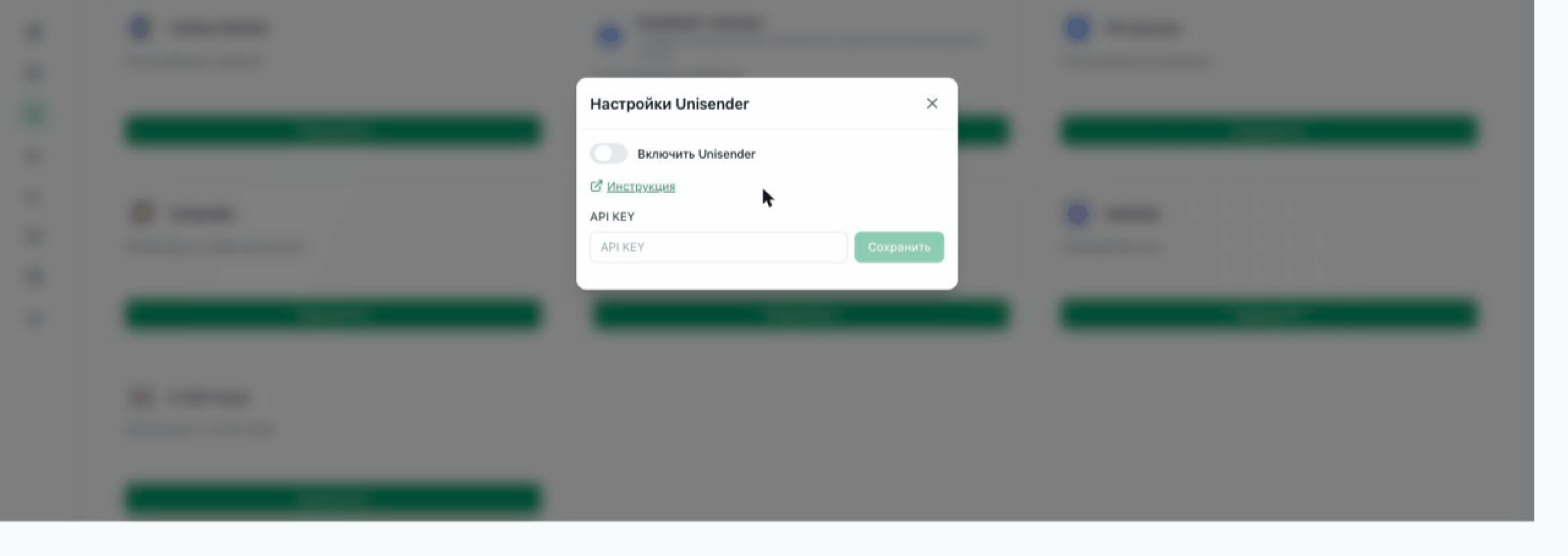
Paste the API key
Paste the API access key into the “API KEY” field and click “Save” next to the field.
If the key is valid, you see the “Connection established” message and the rest of the settings open.
If the key is valid, you see the “Connection established” message and the rest of the settings open.
Choose the list
Choose the list your contacts will go to. Without a selected list, leads are not sent.
Tags and subscription confirmation
Tags, separated by commas, are added to the contact record and help you segment. Up to ten.
Subscription confirmation decides what happens to a new contact:
Subscription confirmation decides what happens to a new contact:
| Option | What happens |
|---|---|
| Enabled | UniSender sends an email with a confirmation link. Until the person opens it, they get nothing else. This is the safest option for your sender reputation. |
| Disabled | The contact is added right away, with no confirmation email. |
| New contacts only | The confirmation email is sent only if the contact did not exist before or is inactive. |
Turn on the toggle and save
Turn on “Enable UniSender” and click “Save”.
What gets sent to UniSender
From each lead, the email, phone and name go to the contact, along with any tags you set. The phone number is converted to international format automatically.
Quiz answers are not sent to UniSender: it stores the contact for your mailings, while the answers stay in your LeadForms leads or your CRM.
Quiz answers are not sent to UniSender: it stores the contact for your mailings, while the answers stay in your LeadForms leads or your CRM.
If contacts don't show up
— Check that a list is selected: without it, nothing is sent.
— UniSender errors appear in your LeadForms dashboard as a delivery issue for that channel, with the service response. Most often it is an expired API key.
— No contact is created if the person left neither an email nor a phone number.
— Leads are sent only if your LeadForms lead balance is positive.
— UniSender may reject invalid addresses.
— UniSender errors appear in your LeadForms dashboard as a delivery issue for that channel, with the service response. Most often it is an expired API key.
— No contact is created if the person left neither an email nor a phone number.
— Leads are sent only if your LeadForms lead balance is positive.
— UniSender may reject invalid addresses.
Having trouble with the setup?
If something doesn't work, and we'll sort it out with you.
