

Copy the script code
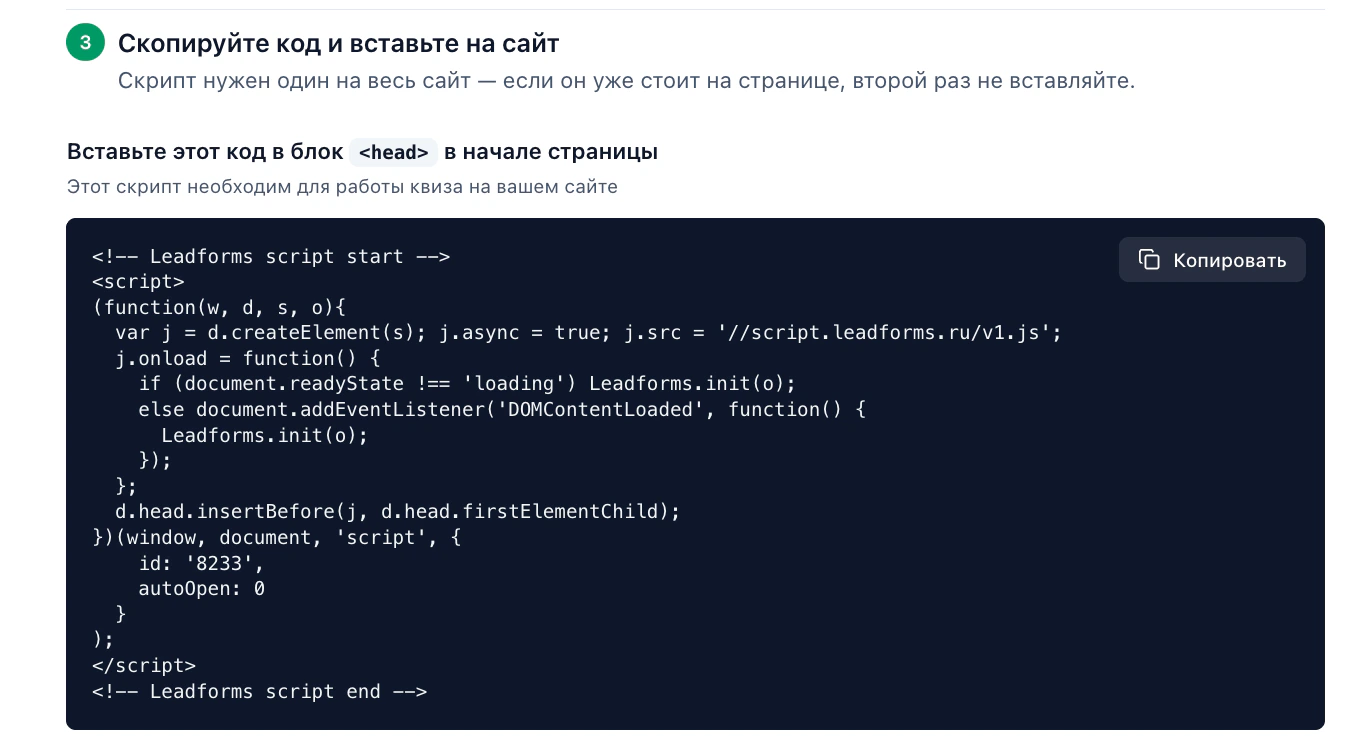
In the quiz editor, open “Publish” → “On website”, choose the “Button” type and click “Copy” under the code for the
<head> section.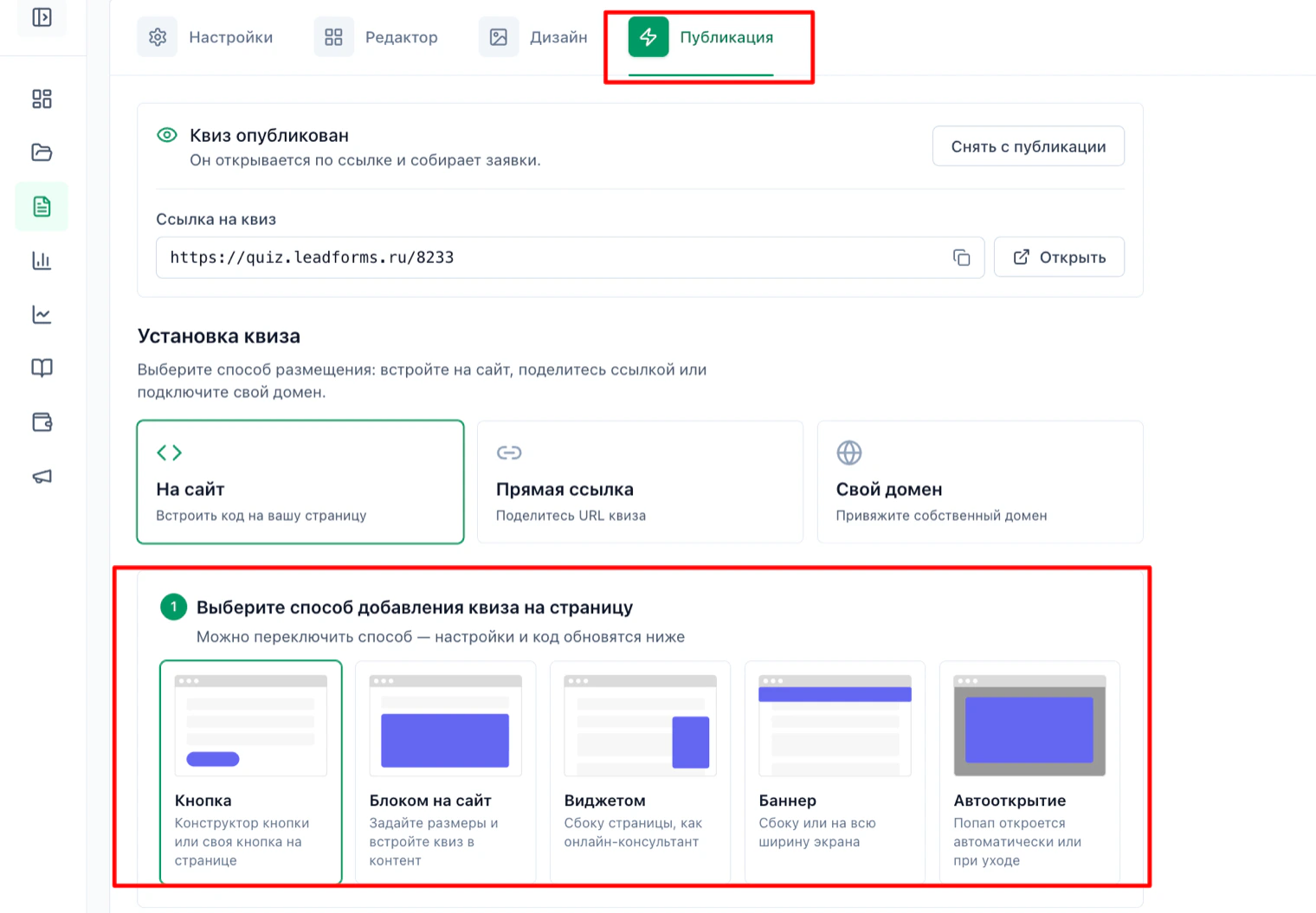
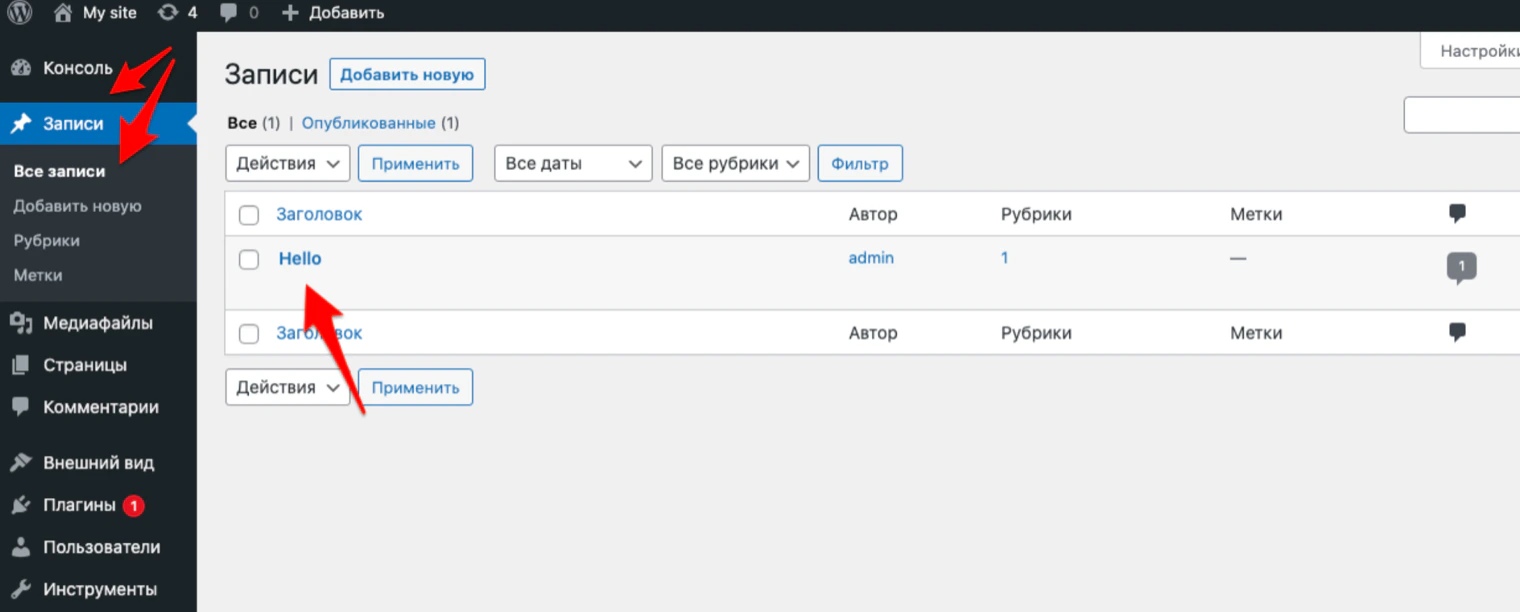
Open the post in WordPress
In the WordPress dashboard, go to “Posts” → “All Posts” and open the one where you want the quiz.
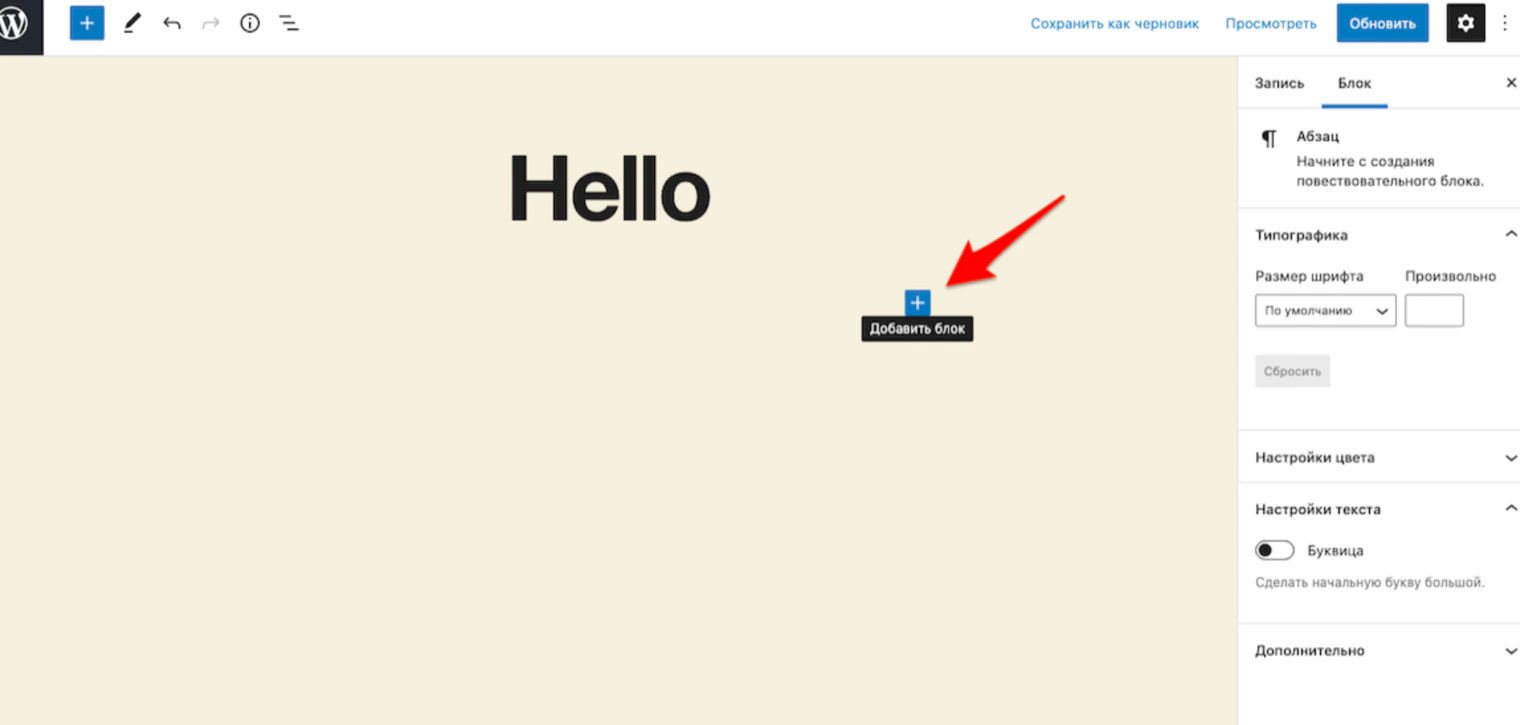
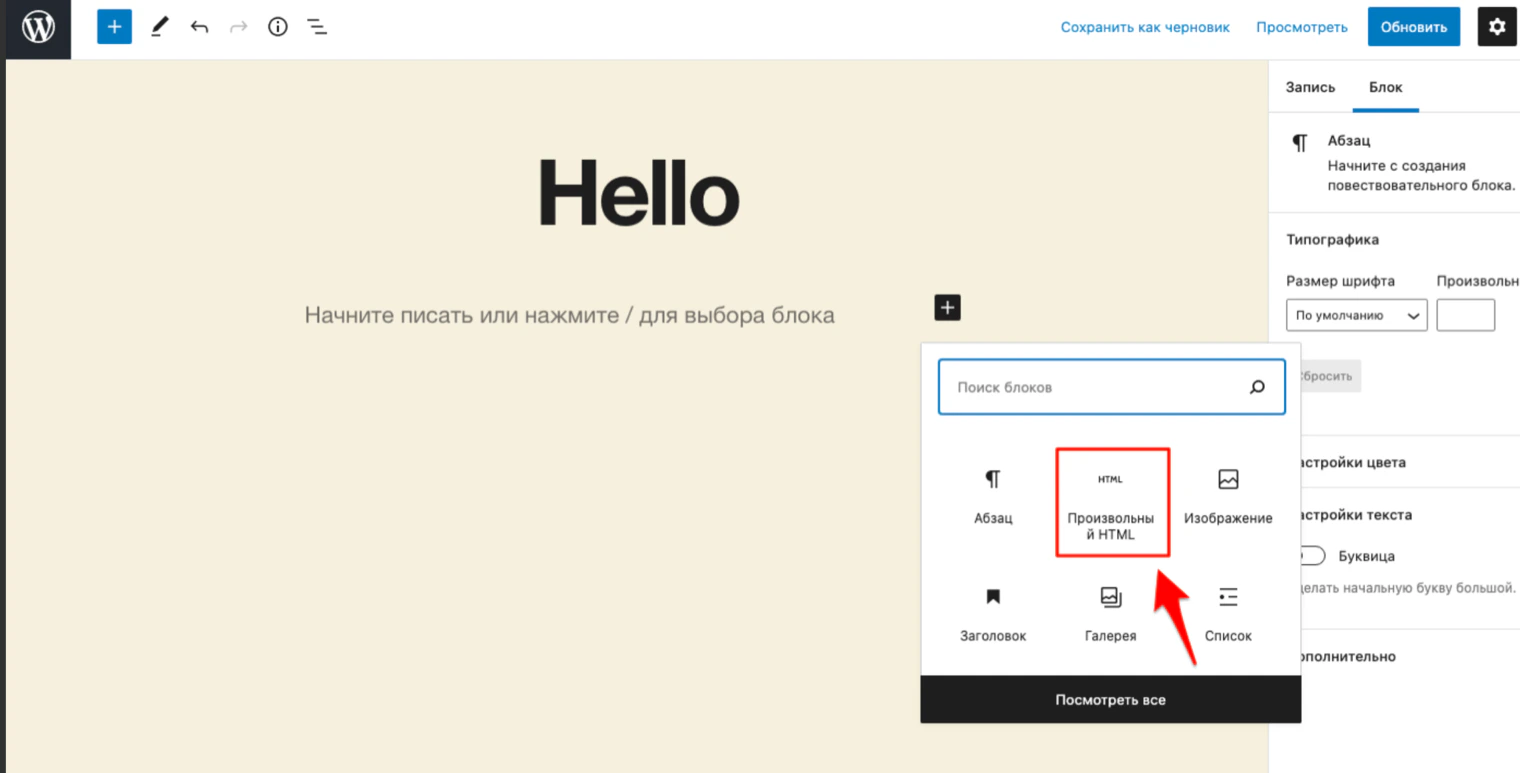
Create a new block
In the post editor, click the “+” icon (“Add block”) right where you want the quiz.
Choose the “Custom HTML” block and paste the initialization code
In the block list, choose “Custom HTML” and paste the initialization code into it. If you don't see it in the list, use the block search or “Browse all”.
Go back to LeadForms and copy the button code
Below the script for the
<head> section there is a second code block, “Paste this code anywhere on the page”. That is the one that renders the button. Click “Copy”.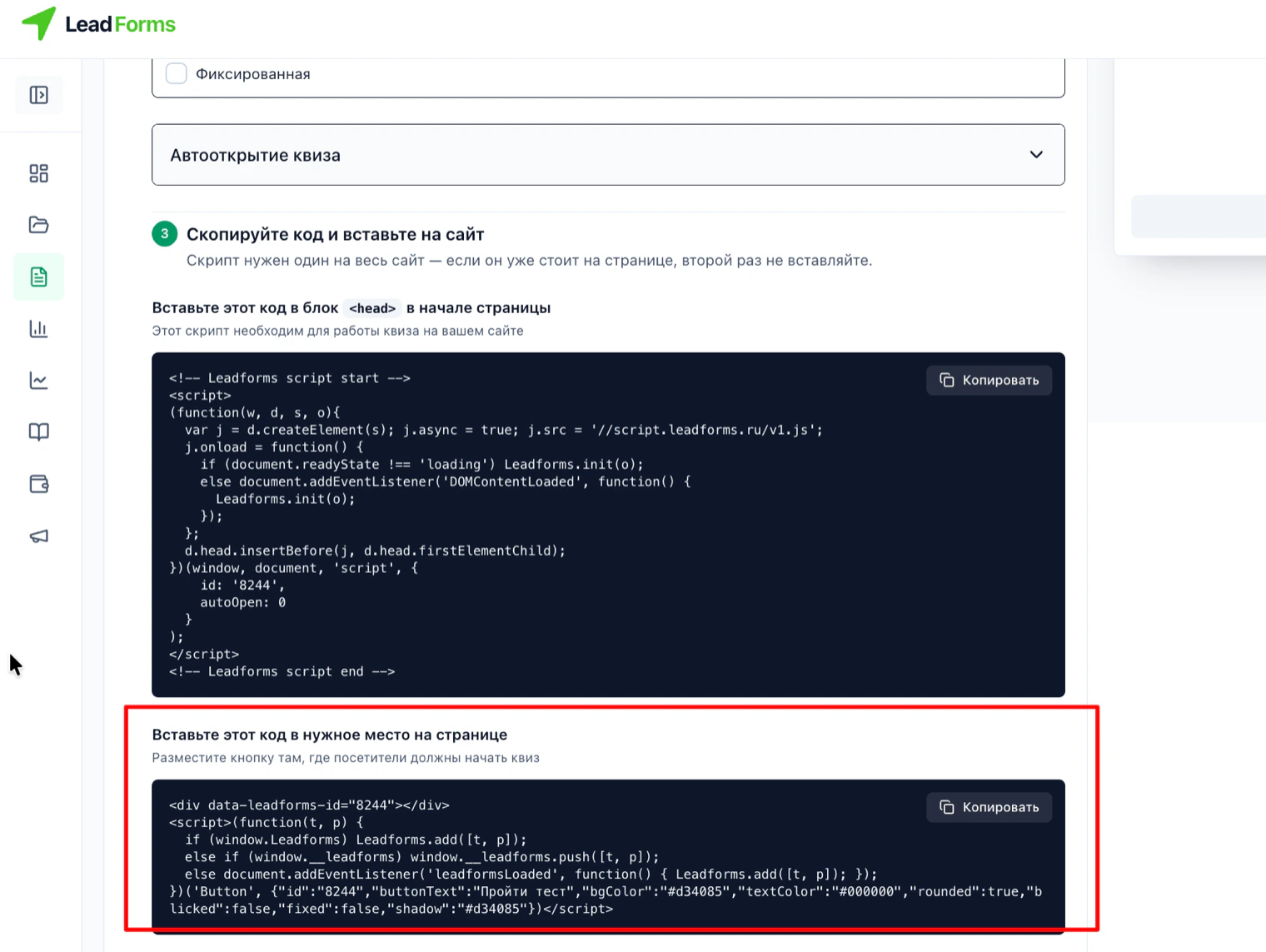
Paste the button code and update the post
Go back to the post editor and paste the button code into the same “Custom HTML” block where you put the initialization code, right after it. Click “Update”.
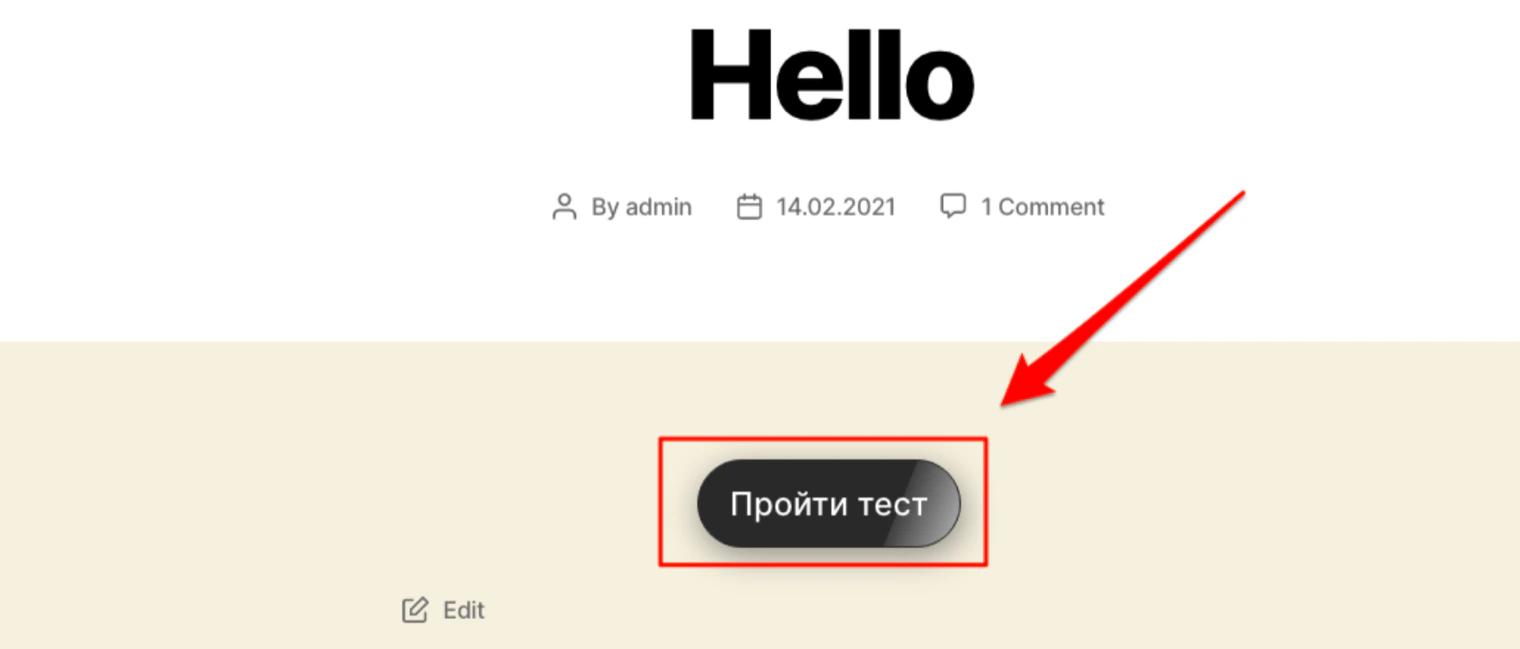
Done! The quiz is live
A button appears on the page, and clicking it opens the quiz.
If you prefer your own button
Use this option when the quiz should open from a button that already exists on your page rather than from the LeadForms code.
You still need the script for the
You still need the script for the
<head> section: paste only that one, as in steps 1 to 3 above. The button code is not used here.Copy the button link
In the “Custom button” subtab, copy the link in the
#popup:Leadforms_ID format.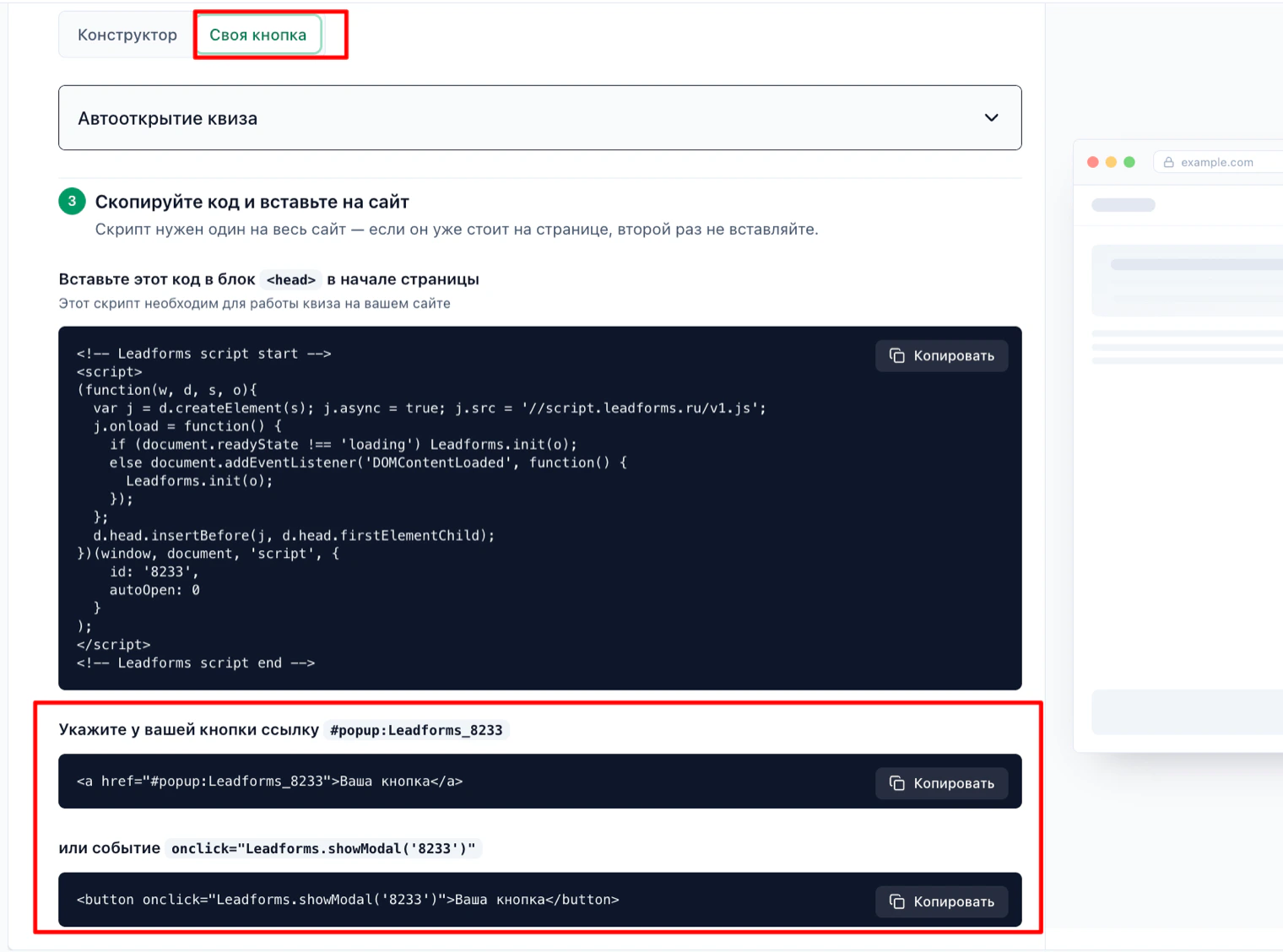
Add the button
Go back to editing the post and insert a button. Give it a label and paste the copied link into the “URL” field.
Publish the page
Having trouble with the setup?
If something doesn't work, and we'll sort it out with you.
