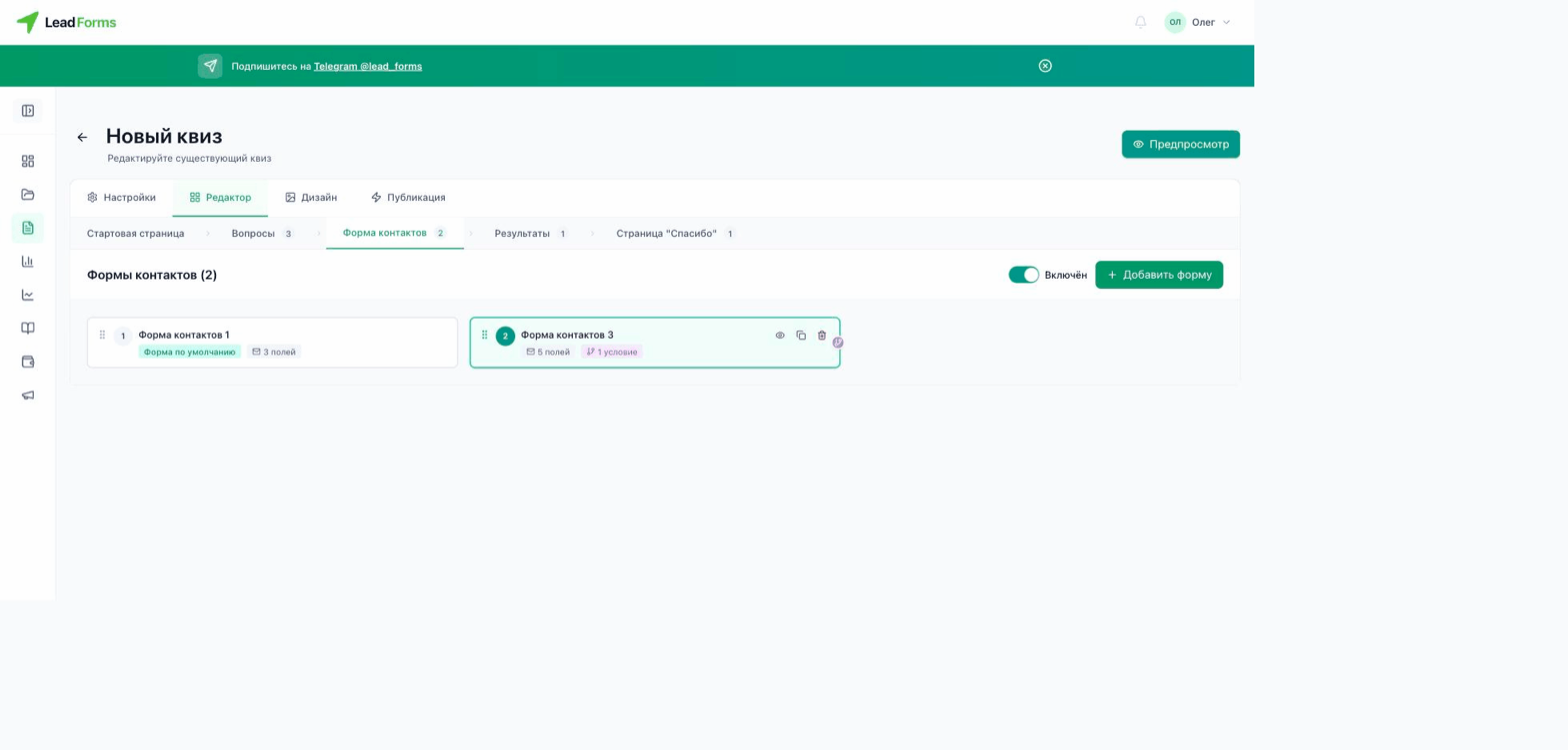
Set up the form content
Open the quiz and go to the “Editor” tab → “Contact form” step. On the “Content” tab you can upload an image, turn on the progress bar and the “Ask for messenger contact” checkbox (Telegram/WhatsApp).
Set up the fields
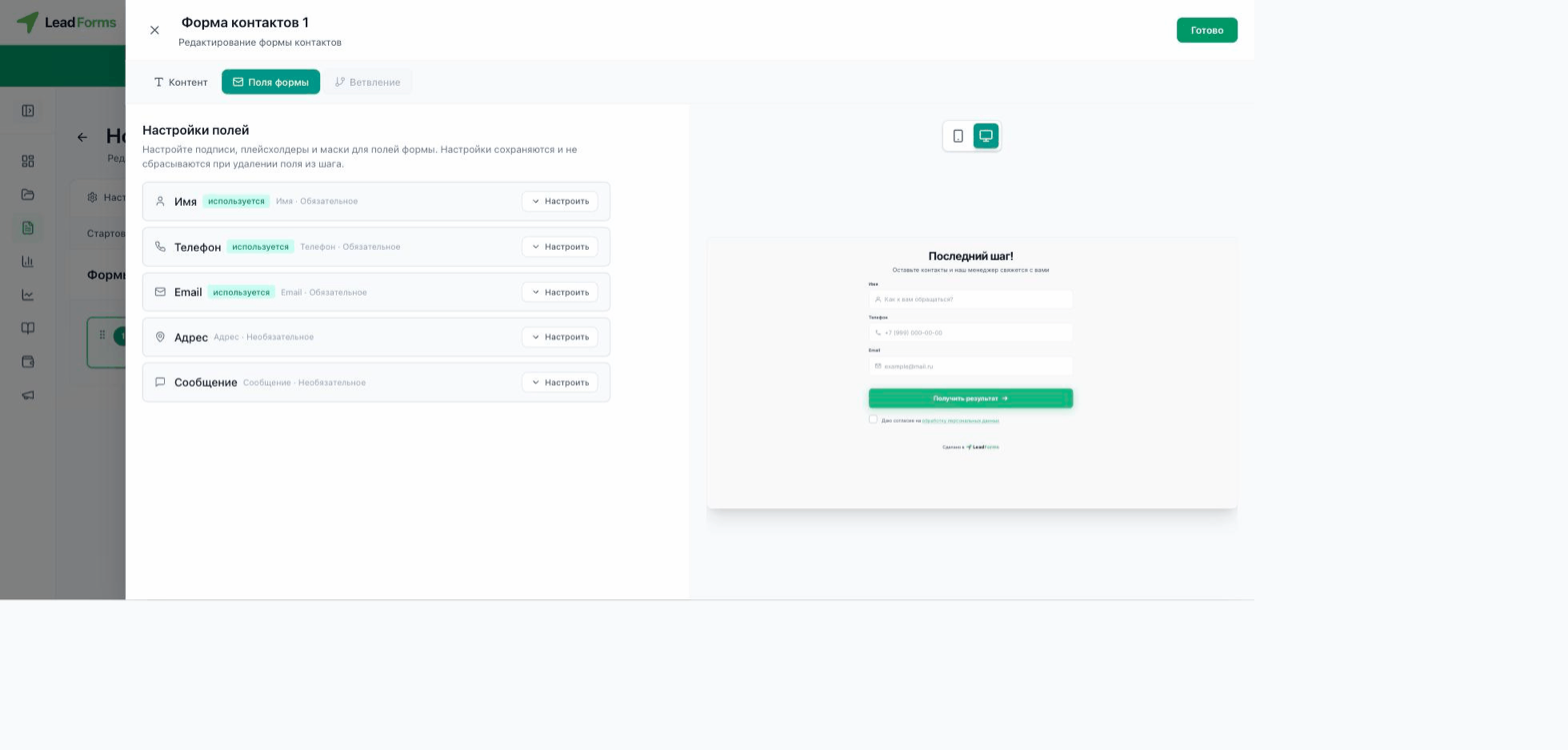
On the “Form fields” tab, for each field (name, phone, email, address, message) click “Configure” to set its label, hint text and input mask, and to mark it as in use and required.
Split the form into several steps
The “Add second step” button splits the fields across two screens: for example, name and phone first, then email and address on the second step.
Add another contact form
With the “Add form” button you can create a second form and more, for example with different fields. Which one each person sees depends on the conditions on the “Conditional logic” tab; this is covered in the guide “Contact form based on answers”.