

Assign the points
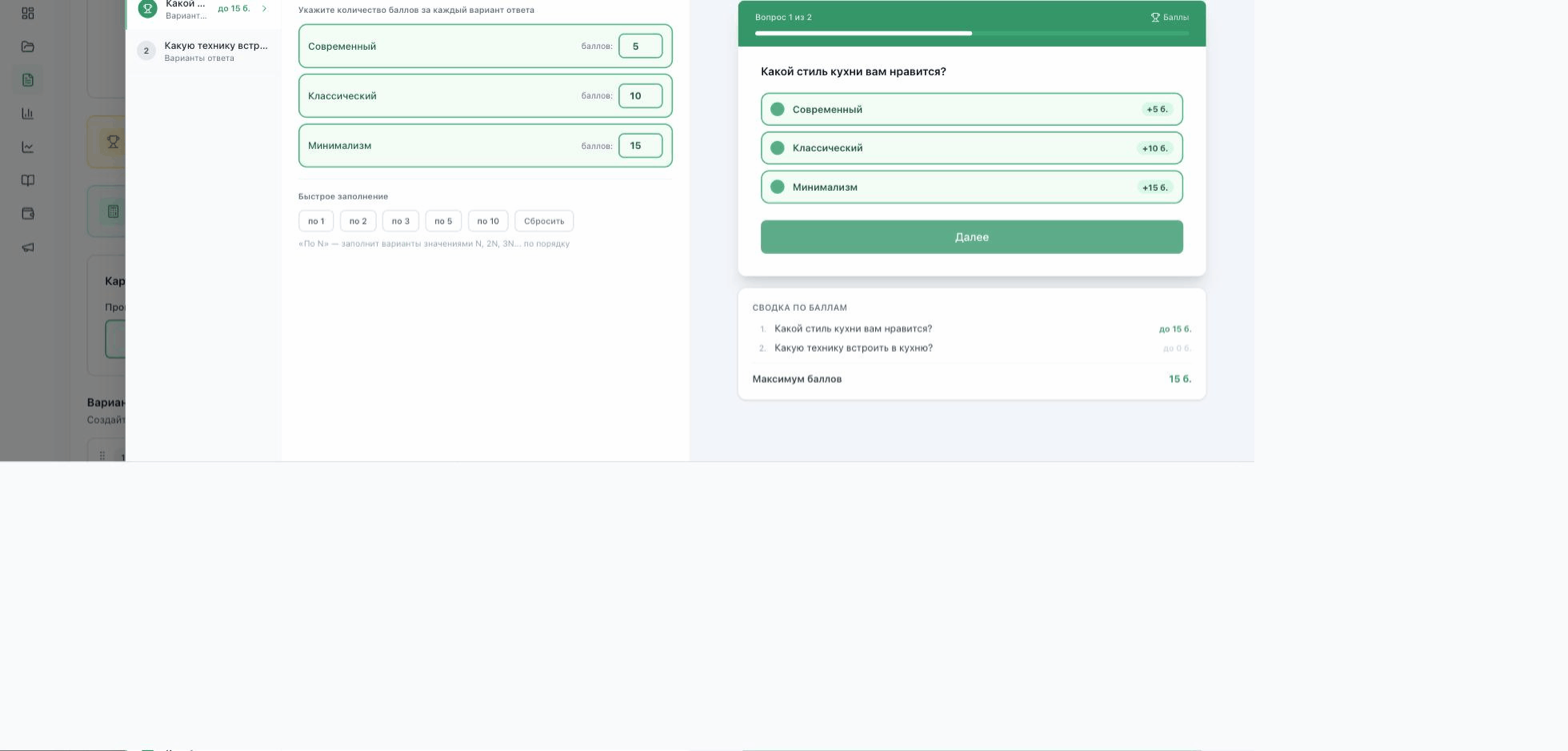
Open the quiz and go to the “Editor” tab → “Results” step → “Set up points” button. Choose a question on the left and enter how many points each option is worth, manually or with the quick-fill buttons (1, 2, 3, 5, 10 or reset).
On the right you see a preview of the question with the points for each option and, below it, a summary with the maximum score for the quiz.
Set the points condition for the result
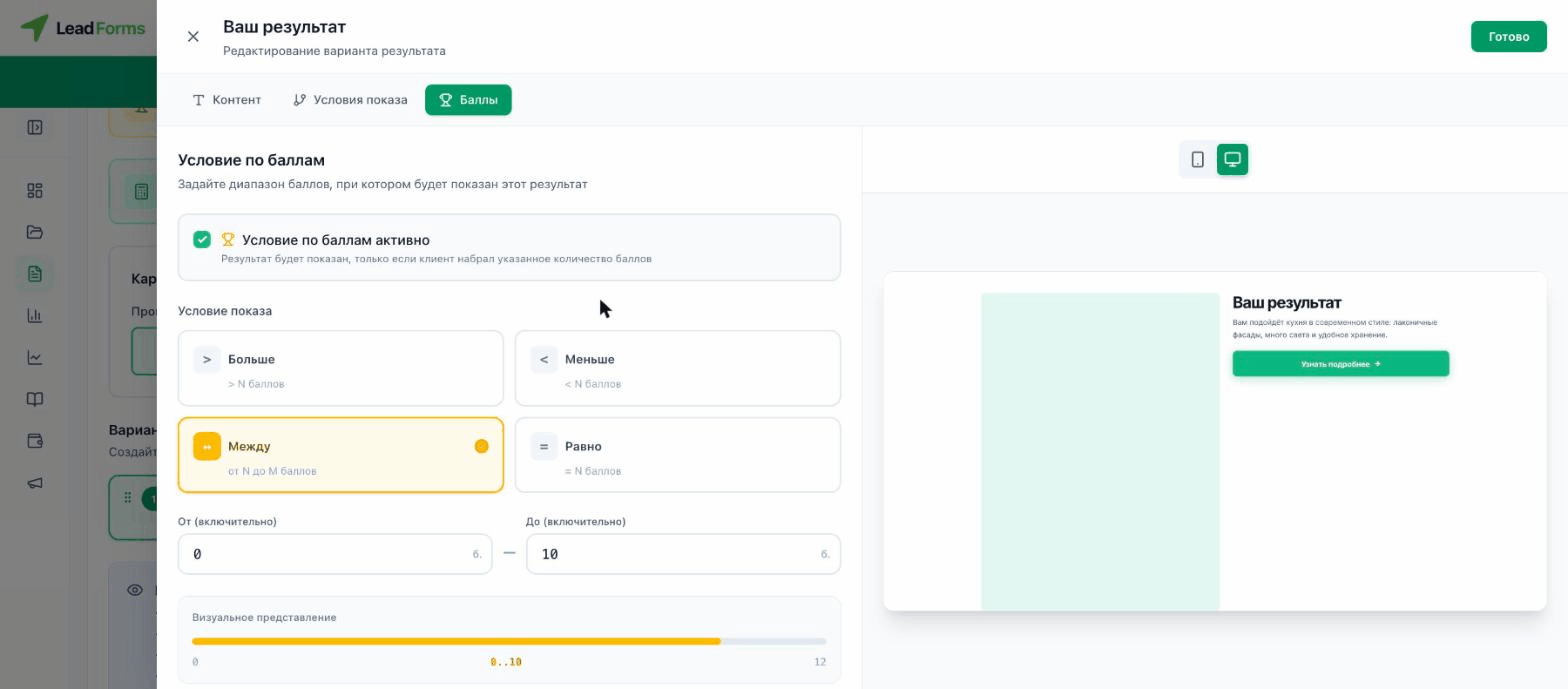
Open the result you need and go to the “Points” tab → turn on “Points condition active”. Choose the condition type: “Greater than” (> N points), “Less than” (< N points), “Between” (a range from N to M) or “Equal to” (= N points), and enter the values.
Add results for the other ranges
Add more results with the “Add result” button and give each one its own points range: this way every person sees the text that matches their score. Setting up results is covered in the guide “How to set up test results”.
