

What you get
Once connected, the agent works with your account directly: “which leads came in today,” “move Jessica’s lead to In progress,” “build a quiz for a dental clinic and publish it.”
The agent sees and does the same things you do in your dashboard, except payments, profile settings and quiz transfers, and it always asks you to confirm before deleting anything. For more on what it can do, see LeadForms MCP server for ChatGPT and Claude.
The agent sees and does the same things you do in your dashboard, except payments, profile settings and quiz transfers, and it always asks you to confirm before deleting anything. For more on what it can do, see LeadForms MCP server for ChatGPT and Claude.
Open the “AI agents (MCP)” section
In your LeadForms dashboard, open the “AI agents (MCP)” section. It’s at the bottom of the left menu, next to “Balance” and “Help.”
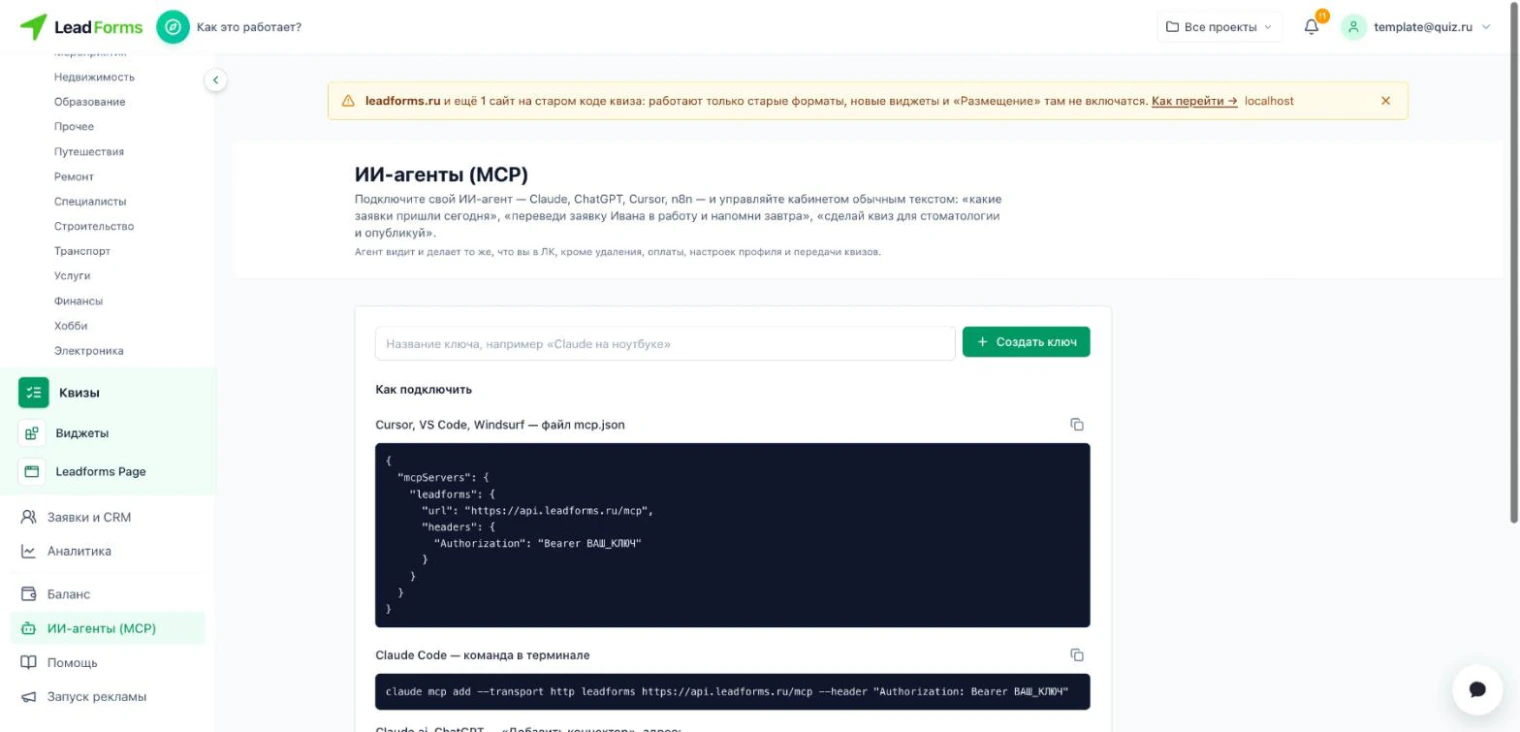
Create a key
Enter a name for the key (for example, “Claude on my laptop”) and click “Create key.”
The name is just for you, to tell your keys apart: it’s handy to create a separate key for each device or service.
The name is just for you, to tell your keys apart: it’s handy to create a separate key for each device or service.
Add LeadForms to your agent
The same dashboard page has ready-to-copy snippets, so pick the one for your agent. Wherever you see
YOUR_KEY, paste the key you created.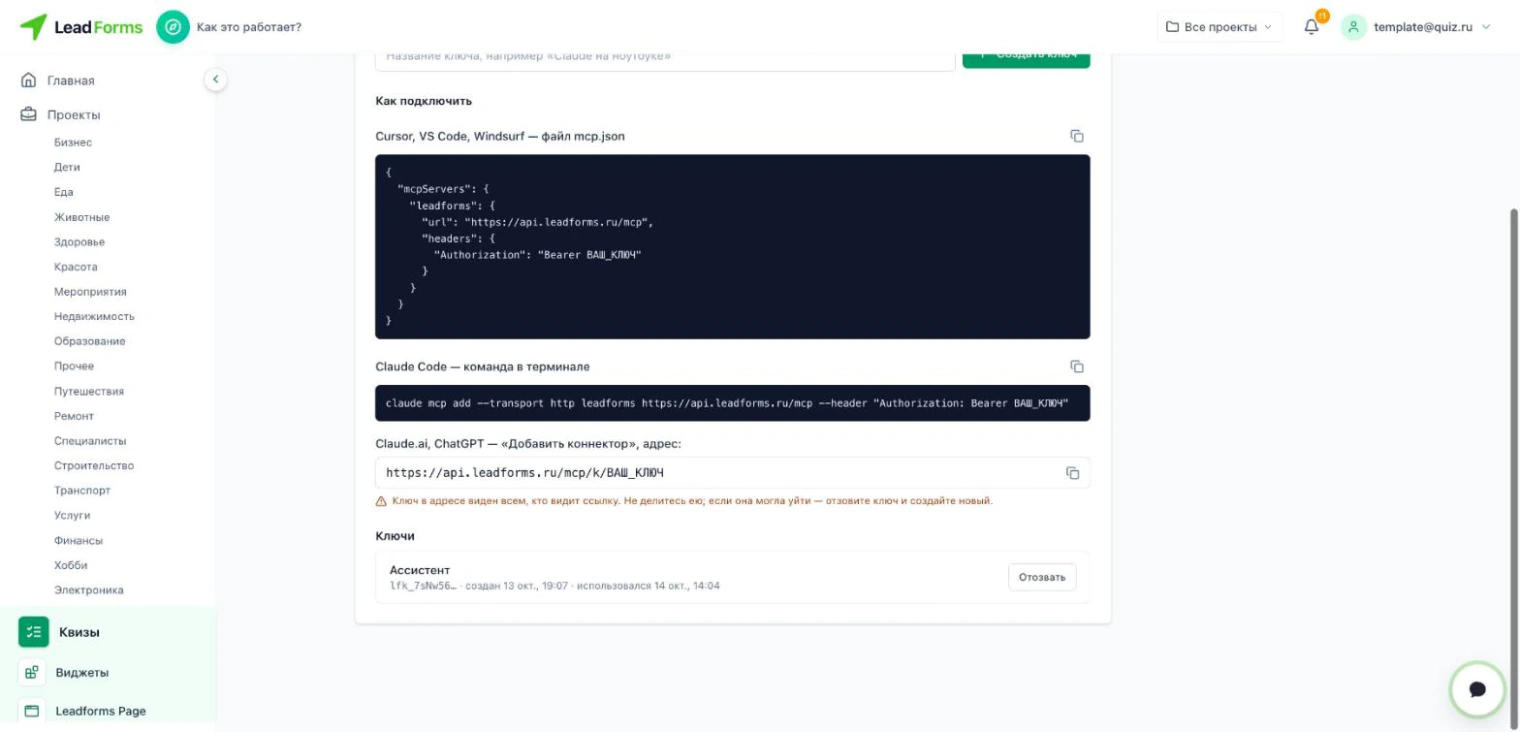
Claude.ai and ChatGPT: add a custom connector and paste this URL:
https://api.leadforms.org/mcp/k/YOUR_KEYClaude Code: run this command in your terminal:
claude mcp add --transport http leadforms https://api.leadforms.org/mcp --header "Authorization: Bearer YOUR_KEY"Cursor, VS Code, Windsurf: add the server to your
mcp.json file:{
"mcpServers": {
"leadforms": {
"url": "https://api.leadforms.org/mcp",
"headers": {
"Authorization": "Bearer YOUR_KEY"
}
}
}
}n8n and other clients: enter the URL
https://api.leadforms.org/mcp and an Authorization header with the value Bearer YOUR_KEY.Test the connection
Type “show me my quizzes” to the agent. If it replies with a list, everything works, and you can ask it to build your first quiz or show your leads.
Keep your key safe
The key gives access to your account, so treat it like a password.
In the Claude.ai and ChatGPT option, the key is part of the URL itself, so anyone who gets that link can see it. Don’t post it or forward it.
If the key may have reached someone else, open the “AI agents (MCP)” section, click “Revoke” next to it and create a new one. A revoked key stops working right away.
In the Claude.ai and ChatGPT option, the key is part of the URL itself, so anyone who gets that link can see it. Don’t post it or forward it.
If the key may have reached someone else, open the “AI agents (MCP)” section, click “Revoke” next to it and create a new one. A revoked key stops working right away.
What the agent won’t do
Payments, profile settings and quiz transfers are not available with the key: they stay in your dashboard only.
The agent deletes something only when you ask directly and confirm. First it will offer to unpublish the quiz instead: visitors won’t see it, and you can bring it back any time.
Contact details for leads beyond your paid balance look the same to the agent as they do to you in the dashboard: hidden until you top up.
The agent deletes something only when you ask directly and confirm. First it will offer to unpublish the quiz instead: visitors won’t see it, and you can bring it back any time.
Contact details for leads beyond your paid balance look the same to the agent as they do to you in the dashboard: hidden until you top up.
Having trouble with the setup?
If something doesn't work, and we'll sort it out with you.
