

Why you need it
Every quiz lead automatically becomes a deal in Kommo, together with the client’s contact details and answers. Your manager doesn’t have to copy anything by hand, and the deal goes straight to the right pipeline and the right responsible user.
In the quiz, go to “Settings” → “Integrations” and click “Connect” on the Kommo (amoCRM) card
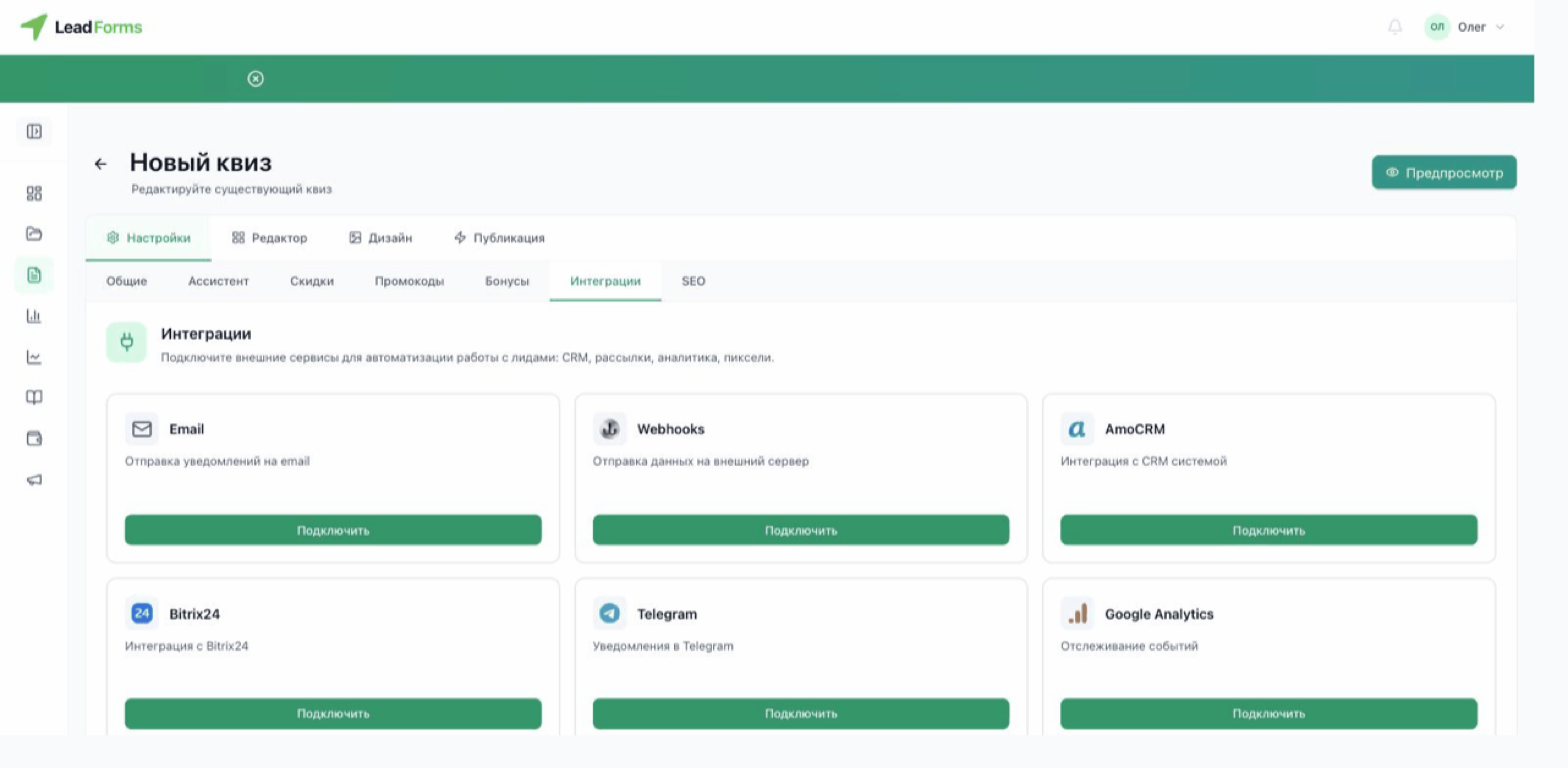
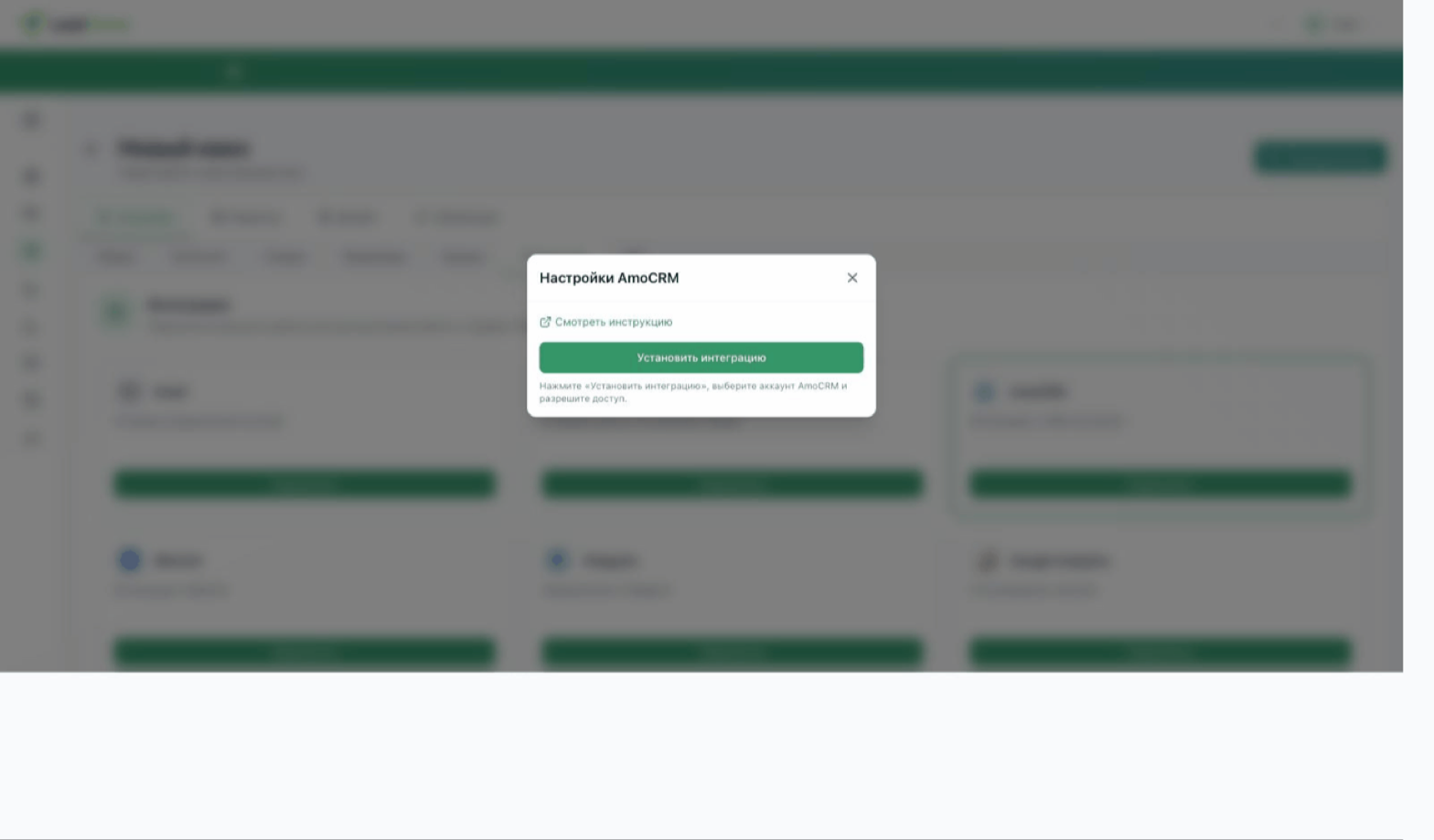
Click “Install integration”
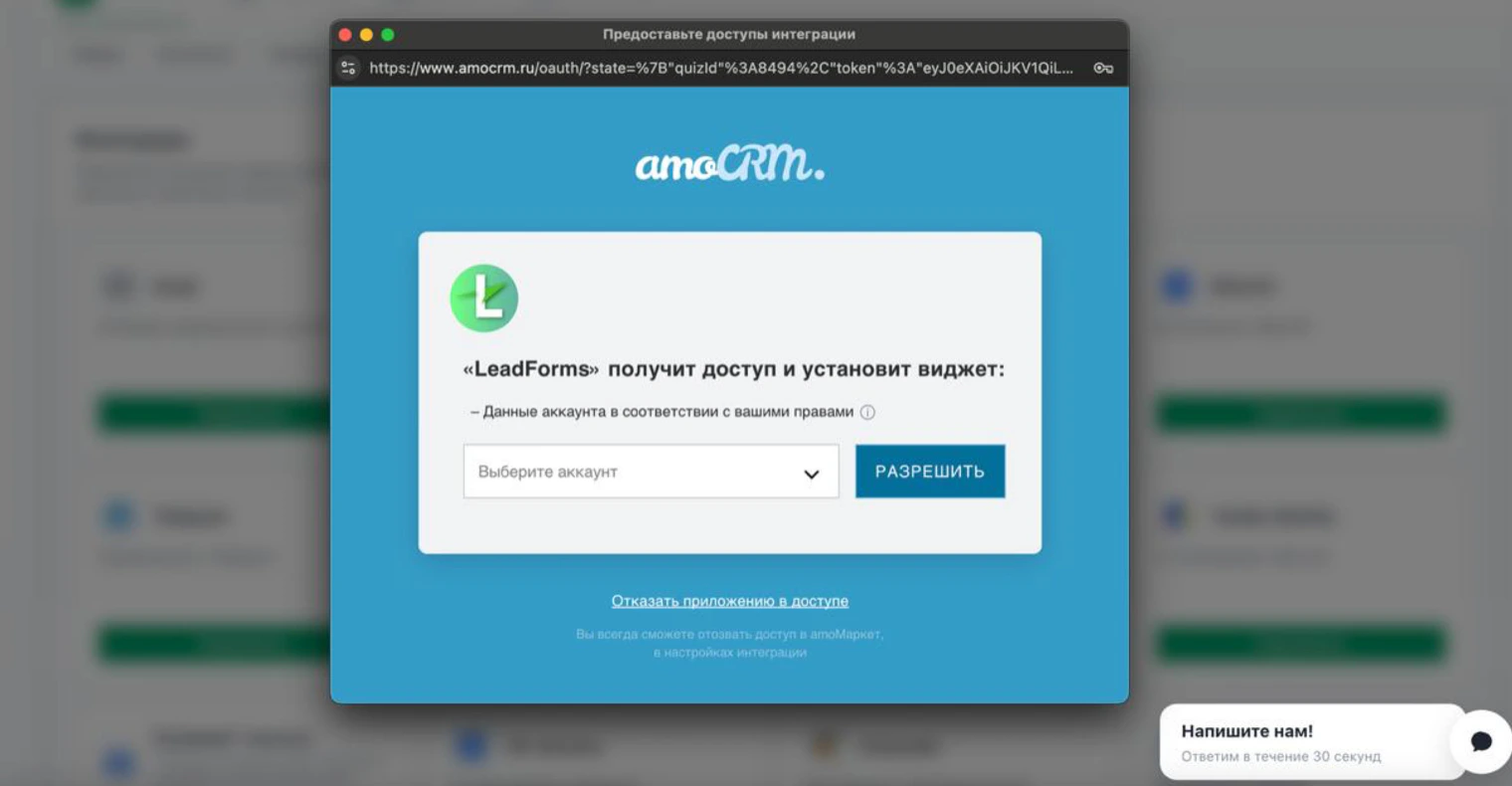
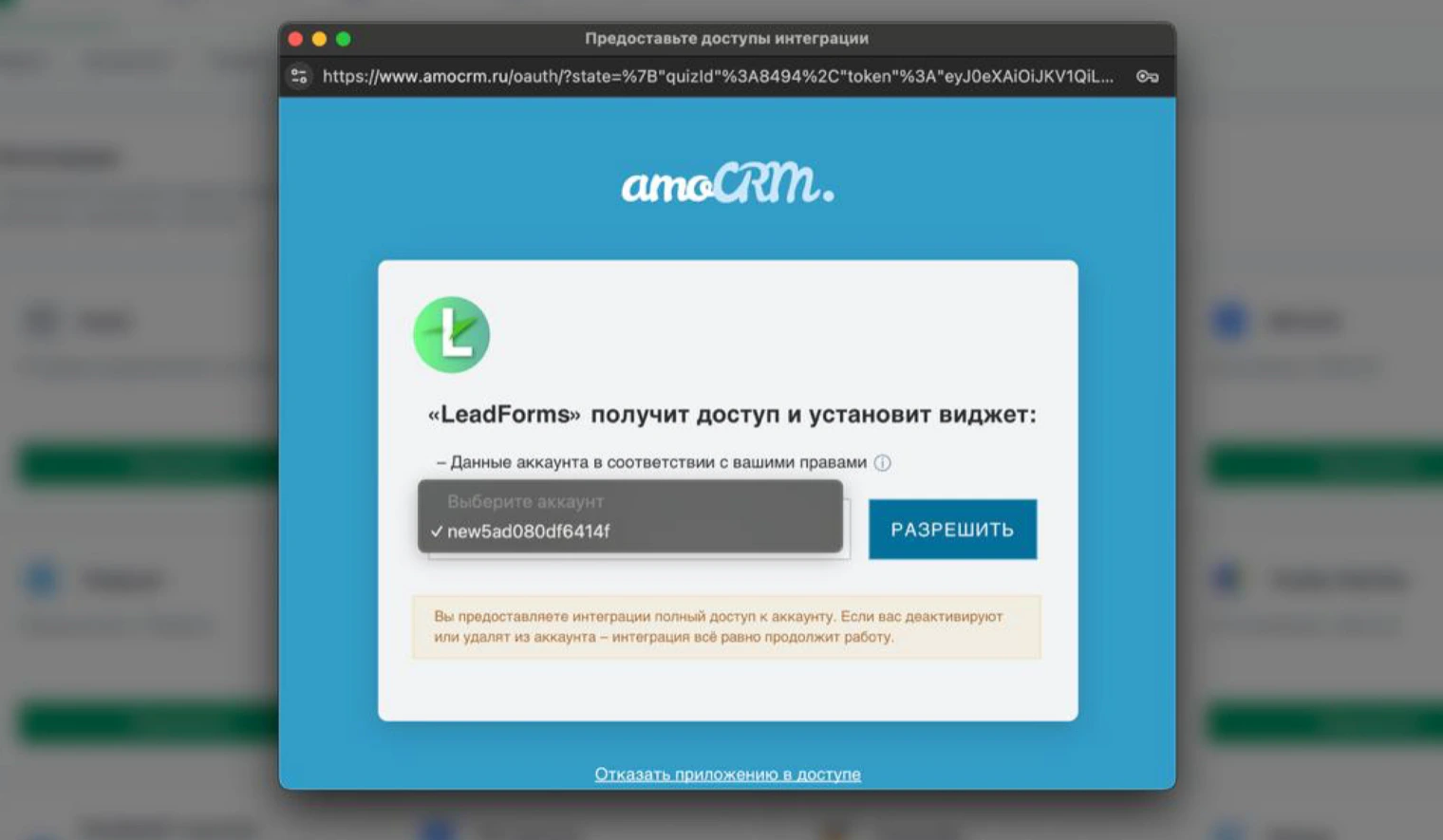
Choose your account
In the pop-up window, choose your account and click “Allow”.
Done: the CRM is connected
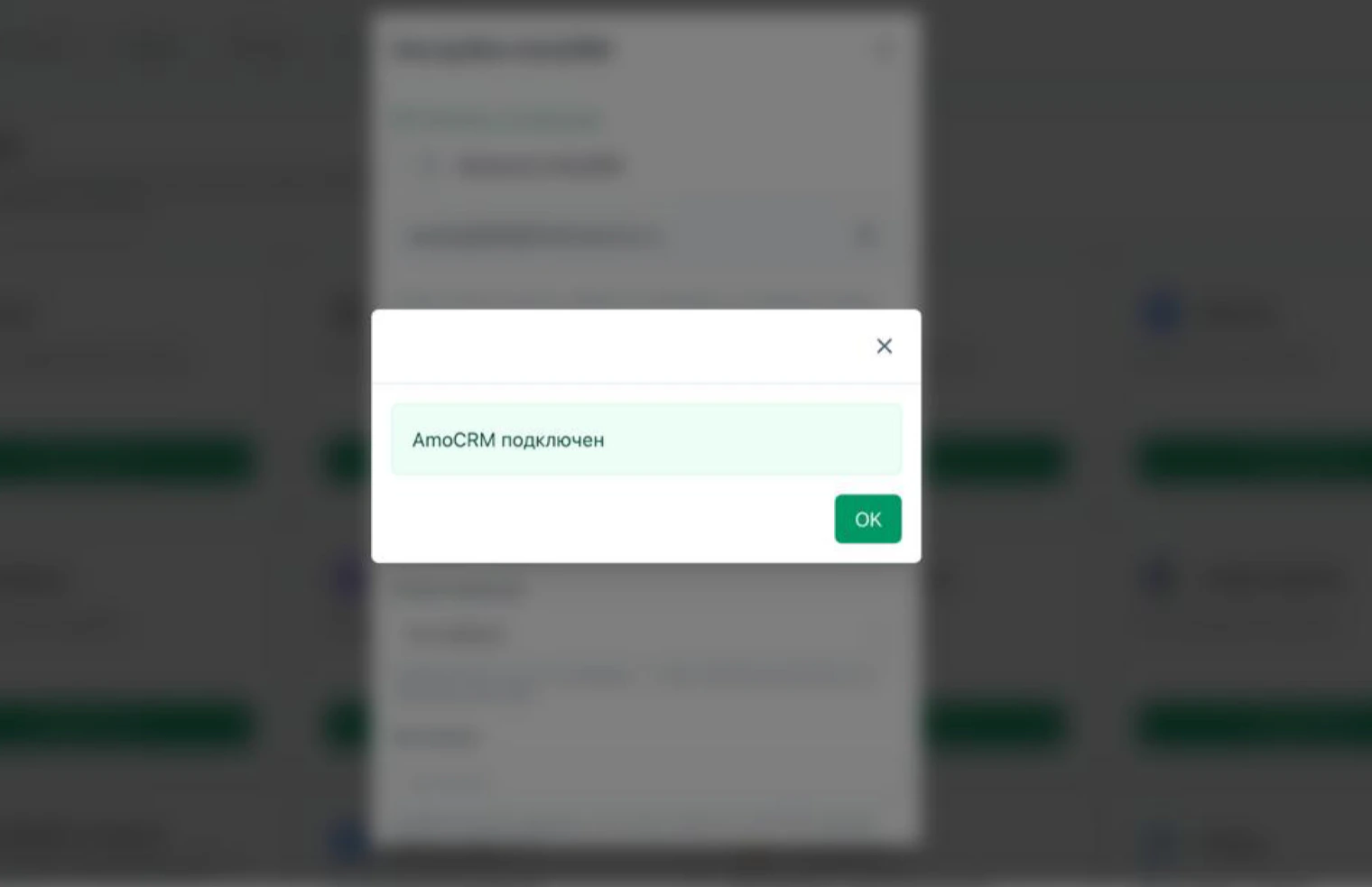
Once you grant access, a message confirms the connection. Click “OK”.
Set up how leads enter the CRM
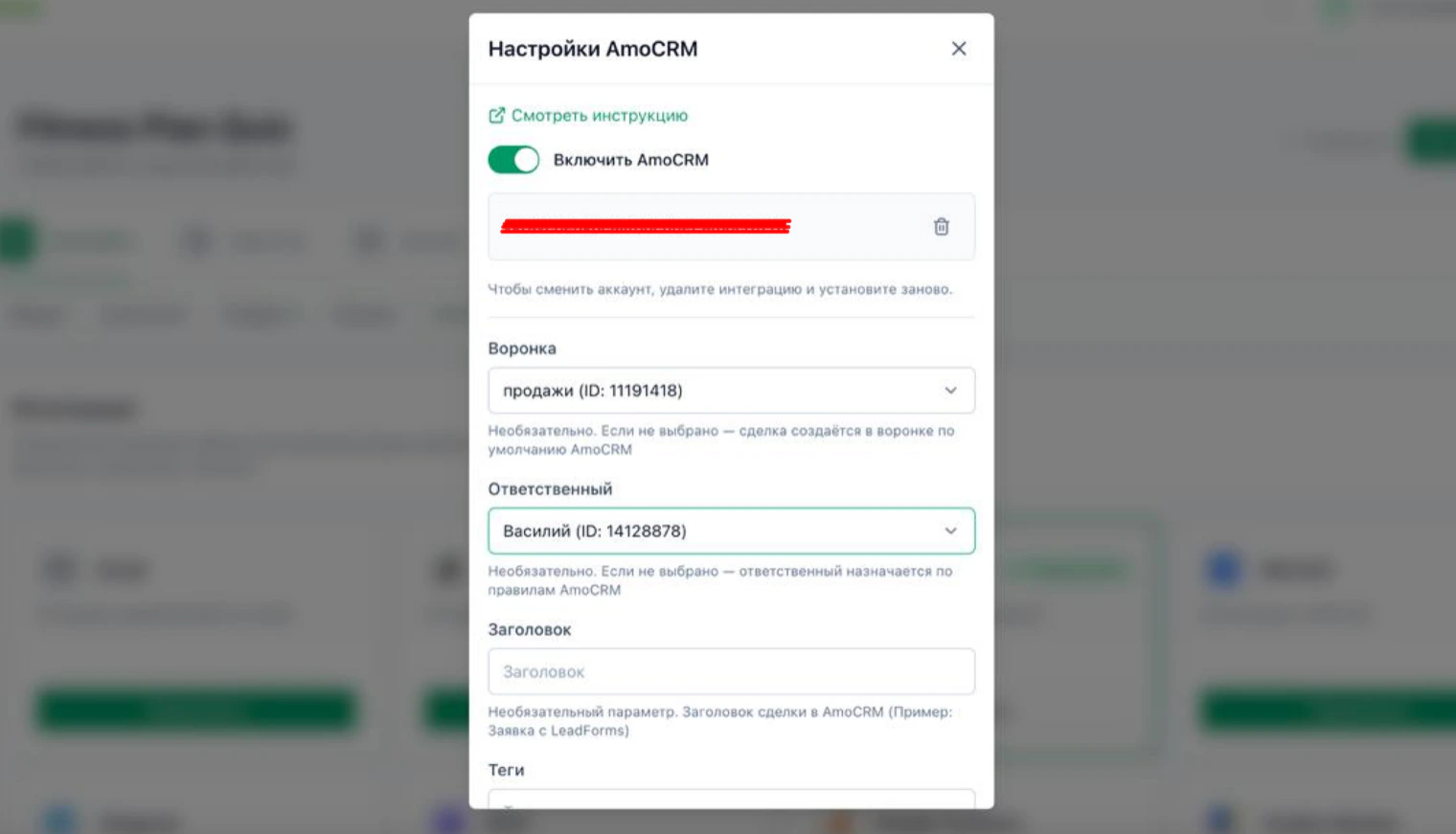
All fields are optional: if you leave them alone, the deal is created with the CRM default rules.
• Pipeline: where the deal ends up. If you don't choose one, the default pipeline is used.
• Responsible user: who the deal is assigned to. If you leave it empty, it is assigned by the CRM rules.
• Title: the deal name. For example, “LeadForms lead”.
• Tags: help you filter leads later.
Further down you can set up which additional fields are sent. When you're done, save.
• Pipeline: where the deal ends up. If you don't choose one, the default pipeline is used.
• Responsible user: who the deal is assigned to. If you leave it empty, it is assigned by the CRM rules.
• Title: the deal name. For example, “LeadForms lead”.
• Tags: help you filter leads later.
Further down you can set up which additional fields are sent. When you're done, save.
FAQ
A contact with the client’s name, phone and email, and a deal linked to it. The answers, result, discount, UTM tags and page address are saved in a note on the deal. If no title is set, a default one with the quiz name is used. Tags, if you set any, are added to both the deal and the contact.
Remove the integration in the “CRM settings” window and install it again, choosing the account you need. Keep in mind that the selected pipeline, responsible user, title and tags are erased when you remove it.
If LeadForms says your browser blocked the pop-up, allow pop-ups for cp.leadforms.org or click the authorization link below the message.
While your balance has no leads left, leads aren’t sent to Kommo; once you top up, the held leads go out automatically. If Kommo returned an error, your dashboard shows a notification with the error text and a link to the quiz integrations.
Having trouble with the setup?
If something doesn't work, and we'll sort it out with you.
